
If your Instagram feed, Explore page, or Reels don’t match your current interests, you can reset your recommendations. Instagram now offers tools to clear outdated preferences and start fresh. Here's how to reset your recommendations:
- Reset Suggested Content: Go to your profile, open the menu, select "Content Preferences" under "What you see", and tap "Reset Suggested Content."
- Clear Search History: Remove old search signals by clearing your recent searches via "Your Activity."
- Remove Saved Posts: Delete posts in your saved collections that no longer reflect your interests.
- Mark 'Not Interested': Use the "Not Interested" option on posts you dislike or block recommendations from specific users.
- Unfollow or Mute Accounts: Unfollow or mute accounts that no longer resonate with you.
After resetting, Instagram will show trending content initially and adapt based on your new interactions. The first 50–100 actions you take - likes, comments, or shares - will heavily influence your updated feed. Engage only with content you want to see more of.
For advanced control, consider clearing the app cache or reinstalling Instagram to remove local data. This won’t erase your account history but can improve app performance.
Take charge of your Instagram experience by actively shaping your feed with these steps.
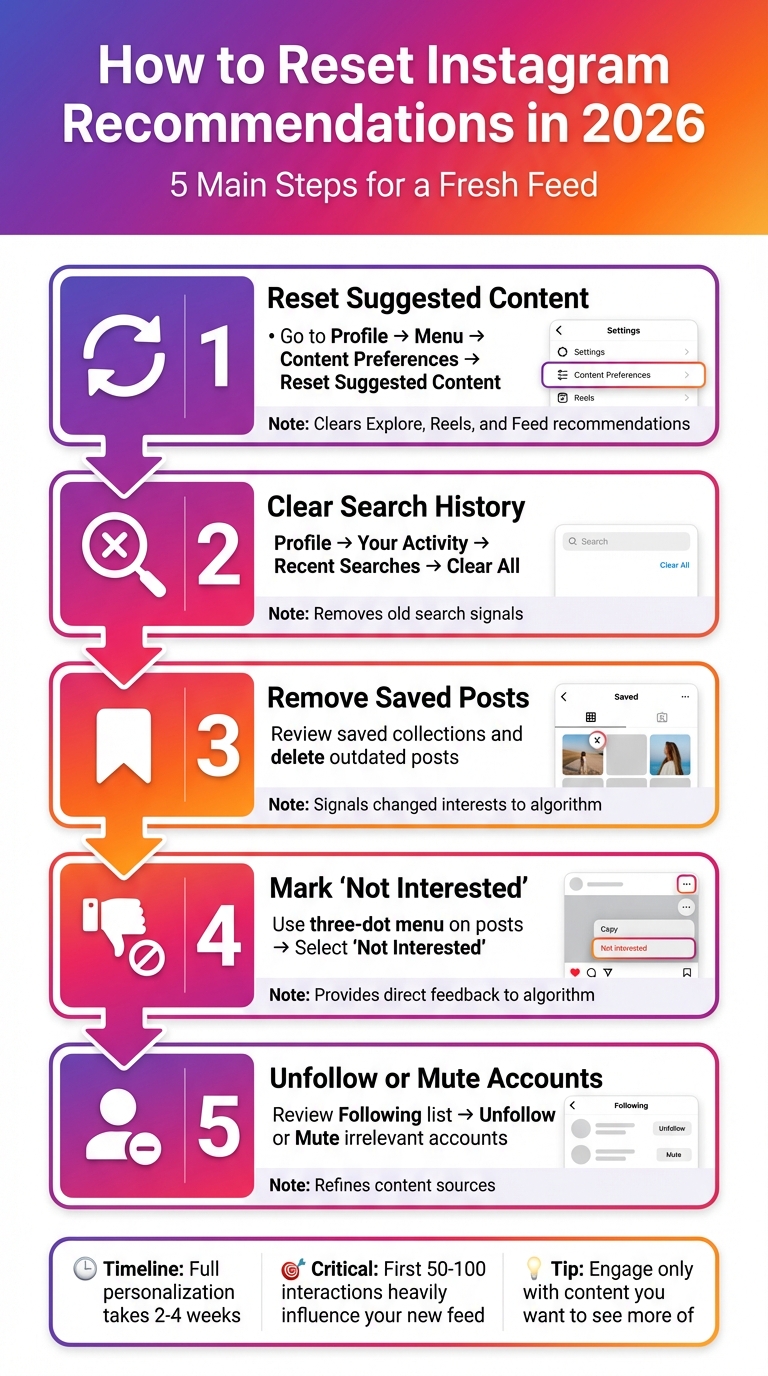
How to Reset Instagram Recommendations: 5-Step Process
How To Reset Algorithm On Instagram! (2026)
How to Reset Instagram Recommendations
Instagram provides a variety of tools to help you refresh the content that appears in your Feeds, Explore page, and Reels. These features are available on both Android and iPhone apps, though some options might not be accessible on desktop. Here’s how you can take charge of your recommendations in 2026.
Use Instagram's 'Reset Suggested Content' Feature
The easiest way to start over with your recommendations is by using Instagram’s reset tool. This option wipes all suggested content from Explore, Reels, and Feed, giving you a clean slate to shape your preferences anew.
To use this feature, follow these steps:
- Tap your profile picture in the bottom right corner.
- Tap the three-bar menu in the top right.
- Scroll to the What you see section and choose Content preferences.
- Select Reset suggested content and review the terms provided.
- Optionally, review the accounts you follow and unfollow any that no longer match your interests.
- Once ready, tap Reset suggested content to confirm.
"In just a few taps, you'll be able to clear your recommended content across Explore, Reels, and Feed and start fresh."
It’s worth noting that this reset won’t affect the ads you see, your current posts, stories, or direct messages. Additionally, it won’t unfollow accounts unless you choose to during the review step. After resetting, Instagram will gradually personalize your recommendations again based on your new interactions, such as likes, comments, shares, and the time you spend engaging with content.
Clear Your Search History and Saved Posts
Your search history and saved posts play a big role in how Instagram tailors content for you. If your interests have shifted, clearing these can help refine your recommendations.
Here’s how to clear your search history:
- Go to your profile and tap the menu icon.
- Select Your activity, then tap Recent searches.
- Choose Clear all to remove previous search signals.
For saved posts:
- Tap the bookmark icon on your profile to view your saved collections.
- Review each collection and remove posts that no longer reflect your current interests.
By clearing outdated searches and saved content, you’re signaling to Instagram that these topics are no longer relevant, helping improve the accuracy of future recommendations.
Mark Content as 'Not Interested' and Unfollow Accounts
Fine-tuning your recommendations often requires giving direct feedback on the content you see. This can be done in real time as you browse.
- For posts you don’t want to see, tap the three-dot menu and select Not interested.
- To block recommendations from a specific user without unfollowing them, select Don’t suggest posts from [username].
If you want to further refine your feed, consider unfollowing or muting accounts whose content no longer resonates with you:
- Go to your profile and tap Following to review and unfollow accounts.
- Alternatively, tap the Following button on a profile, choose Mute, and toggle on Posts and Stories to avoid seeing their content.
For even more control, use the Hidden Words feature under Content Preferences to automatically filter out posts containing specific words or emojis.
These steps will help you gradually shape your Instagram experience to better align with your current interests.
What Happens After You Reset Recommendations
When you reset your recommendations on Instagram, the platform essentially wipes the slate clean. The algorithm forgets all the signals it previously used to tailor your feed - this includes your past likes, comments, shares, and even the time you spent watching specific videos. But don't expect your Explore, Reels, and Feed tabs to go completely blank. Instead, they'll show a mix of trending content rather than the personalized suggestions you’re used to. This reset gives Instagram a chance to start fresh and rebuild a feed that aligns with your current interests.
"Your recommendations will start to personalize again over time, showing new content based on the content and accounts you interact with." - Instagram
The process unfolds in stages. During the first 24 hours, your feed will feature a variety of trending content as Instagram begins to gauge your preferences. Over the next 3 to 7 days, the algorithm starts adjusting, and full personalization typically takes around 2 to 4 weeks. Interestingly, the first 50–100 interactions you have after the reset play a major role in shaping your new profile. These early interactions are key to helping the system understand your updated preferences.
It's worth noting that while your recommendations reset, other aspects of your account - like your followers, posts, stories, and ads - remain untouched. If you didn’t unfollow anyone during the reset, the content shared by those accounts will still influence your feed as the algorithm recalibrates.
The speed at which your feed becomes personalized again depends entirely on how you engage with content after the reset. The first 3 to 5 posts you interact with carry significant weight in determining the direction of your refreshed recommendations. So, those initial interactions are critical in shaping what you’ll see moving forward.
How to Rebuild Your Instagram Recommendations
Once you’ve hit the reset button, it’s time to carefully rebuild your Instagram feed with purposeful actions. After the reset, the algorithm essentially starts fresh, waiting for new cues from your interactions. Instagram uses a mix of active signals - like likes, comments, and shares - and passive signals, such as how long you spend viewing a post, to shape your recommendations. Every second you linger on a video or read a caption influences what the platform will show you next.
Engage with Content You Want to See
To guide the algorithm in the right direction, interact only with content that aligns with your current interests. Like, comment on, save, and share posts that genuinely resonate with you. For instance, if you’re passionate about photography, actively engage with photography-related posts. Within a few days, the algorithm will start tailoring suggestions to reflect your preferences.
You can also use tools like the "Interested" button (found in the three-dot menu on any Explore or Reels post) to directly signal what you want to see more of. Adding accounts to your "Favorites" list is another effective way to prioritize their content in your feed. This not only boosts their visibility but also tells the algorithm they’re important to you. As Henderson Jayden Harper from Make Tech Easier advises:
Be picky about posts you like, comment on, or share. Only click on posts you want the Instagram algorithm to keep suggesting.
Avoid Interacting with Irrelevant Content
Just as crucial as engaging with the right posts is steering clear of content that doesn’t match your interests. Even a brief accidental tap on an irrelevant post can send the wrong message to the algorithm. This is especially true for attention-grabbing "rabbit hole" videos that might not align with your actual preferences.
If something irrelevant pops up, take action. Tap the three-dot menu and select "Not Interested." You can also fine-tune your feed by adding unwanted words, phrases, or hashtags to your "Hidden Words" list in the settings menu. This automatically filters out posts containing those terms. Need a break from all suggestions? Tap the "X" on a recommended post and choose "Snooze all suggested posts for 30 days".
Additional Methods for a Complete Reset
If the earlier steps didn’t fully update your recommendations, you can try these extra methods to clear local data and refresh your experience.
Sometimes, using the 'Reset Suggested Content' tool isn’t enough to remove all recommendations. Local data, like your search history and activity logs, might still affect what you see. Clearing your cache can help by removing temporary files and refreshing the app's suggestions.
Clear App Cache and Data
On Android, you can clear the cache without logging out. Here’s how:
- Open your device Settings, navigate to Apps or Applications, and locate Instagram.
- Tap Storage or Storage & Cache.
- Select Clear Cache to remove temporary files.
For a complete reset, choose Clear Data (or Clear Storage). Keep in mind, this will log you out of the app and delete any locally stored drafts.
On iOS, the process is slightly different. To clear the cache, you’ll need to delete and reinstall the app:
- Long-press the Instagram icon on your home screen.
- Tap Remove App, then select Delete App.
- Reinstall the app from the App Store and log back in.
Uninstall and Reinstall the Instagram App
Uninstalling the app is another way to clear local data and reset Instagram’s settings. However, this won’t erase your interaction history from Instagram’s servers.
Before uninstalling, make sure to save any drafts of Reels or Stories to your camera roll, as these are stored locally and will be lost. Also, ensure you have your account password and any two-factor authentication details handy, as you’ll need them to log back in after reinstalling.
Use Outfame to Grow Your Instagram After Resetting
Resetting your Instagram recommendations can feel like starting from scratch, but rebuilding your audience doesn’t have to be overwhelming. That’s where Outfame steps in. This platform uses AI-driven tools to help creators and brands grow their Instagram presence with followers who genuinely engage.
One standout feature? Outfame connects to your account through secure API technology, so you never need to share your password. It automates audience targeting and engagement around the clock, freeing you up to focus on creating content. With plans starting at $39 per month and a refund guarantee if you don’t see results, Outfame offers a straightforward, stress-free way to build a lasting audience.
Outfame's AI-Powered Audience Targeting
Instagram’s algorithm in 2026 has evolved into a series of AI-powered systems tailored for different features like Feed, Stories, Reels, and Explore, instead of relying on a single unified algorithm. After a reset, Instagram enters what’s called "cold start" mode - a phase where the first 3–5 posts you interact with heavily influence how your new AI profile is shaped. This makes the first week after resetting your recommendations a critical window for rebuilding.
Outfame’s Outfame Max™ AI tool is designed to help you make the most of this period. It analyzes your niche, content style, and target audience to connect you with users who are likely to engage with your content. By focusing on these highly relevant connections, you can quickly build a community that aligns with your goals while Instagram’s algorithm adjusts to your preferences.
Real-Time Analytics and Growth Monitoring
Success on Instagram isn’t just about posting - it’s about understanding how your content performs. In 2026, metrics like average watch time (especially the first three seconds), engagement rates, and "Sends per Reach" (how often your content is shared via DMs) play a big role in signaling Instagram’s AI to recommend your posts to others.
Outfame helps you stay on top of these metrics with real-time growth tracking dashboards. These tools allow you to monitor follower growth, engagement trends, and audience demographics 24/7. You’ll know exactly which posts are hitting the mark and can tweak your strategy as needed. Plus, Outfame includes extras like profile optimization tools, AI-generated content ideas, and live chat support to ensure your growth strategy stays on track as you rebuild your Instagram recommendations.
Conclusion
Take control of your Instagram experience by using the "Reset suggested content" feature, clearing your search history, and marking irrelevant posts as "Not Interested." As Meta puts it:
In just a few taps, you'll be able to clear your recommended content across Explore, Reels and Feed and start fresh.
The reset process is quick, but your actions immediately afterward are crucial. Spend 15–20 minutes engaging with content that aligns with your interests - like, save, and share posts to send strong signals to the algorithm. Be mindful of what you view during this time, as even a few seconds of attention on irrelevant content can shape your recommendations.
To keep your feed aligned with your preferences, use Instagram's feedback tools regularly and review your following list. Kirsti Lang from Buffer highlights this approach perfectly:
Resetting your algorithm isn't just about decluttering your feed. It's about taking control of your Instagram experience.
Once your feed feels personalized and streamlined, you can focus on growth. For those aiming to build a targeted audience while refining their feed, platforms like Outfame offer AI-driven targeting and real-time analytics. With plans starting at $39 per month and a growth guarantee, services like these handle audience targeting for you, freeing up your time to create content that resonates with your refreshed feed.
FAQs
What happens to my account settings when I reset Instagram recommendations?
When you reset Instagram recommendations, it only impacts the content you see in your Feed, Explore, and Reels sections. Everything else - like your profile details, privacy settings, followers, and other account preferences - stays exactly the same. After the reset, Instagram will begin tailoring new suggestions based on what you engage with moving forward.
What should I do after resetting my Instagram recommendations?
Once you've reset your Instagram recommendations, there are a few simple ways to guide the algorithm toward content you actually enjoy:
- Unfollow accounts that no longer resonate with you. This clears up your feed, leaving space for creators and topics you genuinely care about.
- Engage with posts you love. Whether it’s liking, commenting, or saving posts, these actions signal to Instagram what kind of content you want to see more often.
- Hide or report posts that don’t fit your interests. If irrelevant content pops up in your Feed, Explore, or Reels, use the "hide" or "report" options to fine-tune future recommendations.
These steps make it easier for Instagram to adapt to your current preferences, ensuring your feed feels more personalized.
Can I reverse a reset if I don’t like the updated recommendations on Instagram?
Unfortunately, no, you can’t undo a reset of your Instagram recommendations. If the new suggestions don’t align with your preferences, the algorithm will need some time to adjust and relearn your interests based on your activity. If needed, you can always reset it again to start over.


