
Instagram doesn't have a true "Incognito Mode", but you can adjust privacy settings to control who sees your content, hide your activity, and limit data collection. Here's how you can stay private on Instagram:
- Make Your Account Private: Only approved followers can see your posts. Go to Settings and privacy > Who can see your content to toggle this on.
- Remove or Block Followers: Review your followers and remove or block anyone you’re uncomfortable with.
- Hide Activity Status: Stop showing when you’re online by turning off Show Activity Status in Settings and privacy > Messages and story replies.
- Control Tags and Mentions: Approve tags manually and limit who can mention you in Settings and privacy > Tags and mentions.
- Secure Stories: Use the Close Friends feature or block specific people from viewing your stories.
- Disable Location Sharing: Turn off location permissions for Instagram on your device and avoid tagging locations in posts.
- Review Connected Apps: Remove third-party apps you no longer use in Settings > Website permissions > Websites and apps.
These steps help you manage your Instagram privacy while staying in control of your interactions and data.
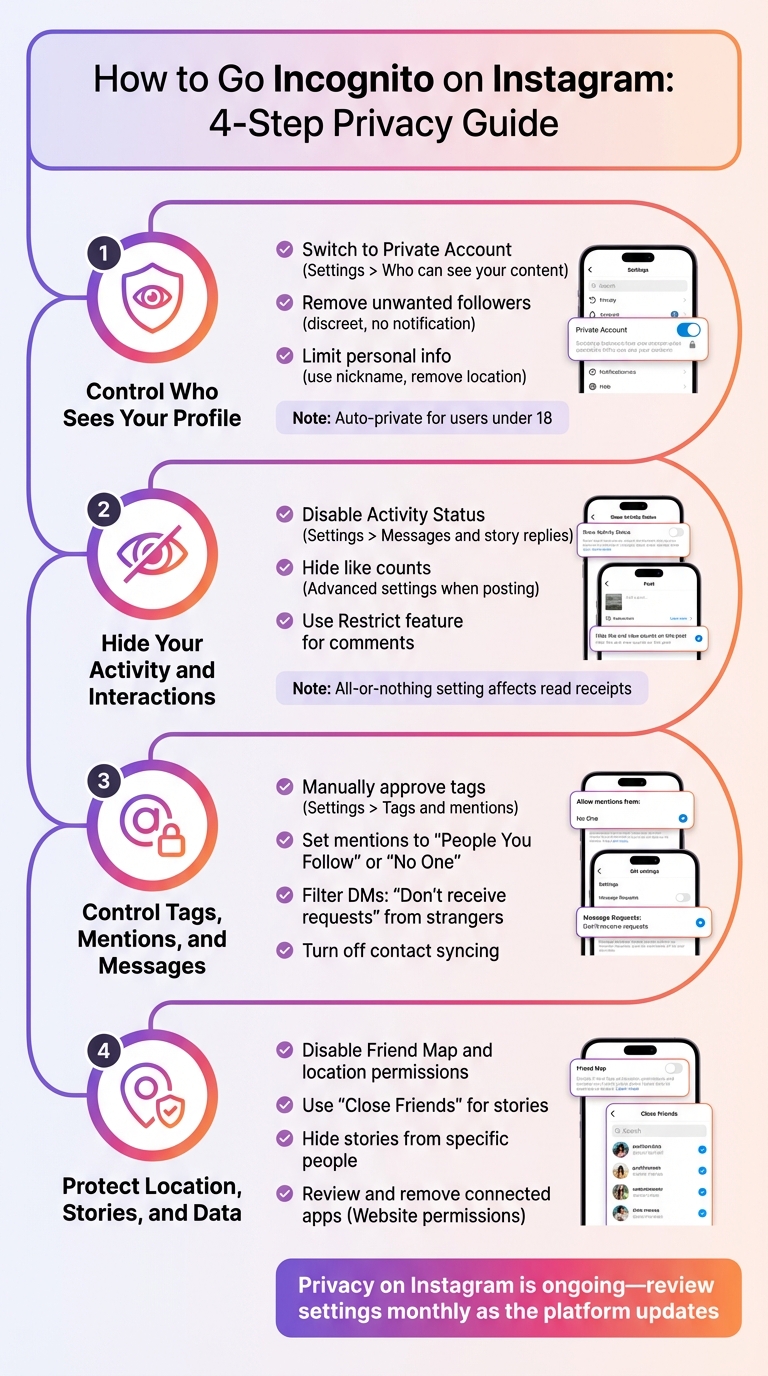
4-Step Guide to Maximize Instagram Privacy Settings
5 instagram privacy settings you need to know
Step 1: Control Who Sees Your Profile
The first step to staying under the radar on Instagram is managing who can view your profile and content. Instagram offers tools to help you decide whether strangers, casual acquaintances, or just approved followers can access your posts and interact with your account.
Switch to a Private Account
Turning your account private is the easiest way to limit who sees your activity. With a private account, only followers you’ve approved can view your photos, videos, and stories. Anyone else will need to send a follow request for access.
To make your account private, go to your profile, tap the three horizontal lines, then select Settings and privacy > Who can see your content, and toggle on the Private account option. Keep in mind, switching to private won’t remove your current followers.
For users under 18, Instagram automatically sets accounts to private through its "Teen Accounts" feature introduced in 2024. If you’re under 16, you’ll need parental permission to switch back to public.
Remove Followers You Don’t Want
Take a moment to review your followers and remove anyone you’re not comfortable with. You can do this discreetly - followers won’t be notified when you remove them. Simply go to your Followers list, tap Remove next to the account you want to take off your list.
If someone poses a bigger concern, you can block them entirely through their profile. Once removed or blocked, they won’t see your posts or stories unless they send a new follow request and you approve it.
Limit Personal Information on Your Profile
To further protect your privacy, reduce the amount of personal information displayed on your profile. Use a nickname instead of your real name, avoid sharing your location, and remove any contact details. Keep in mind that if you’re using a business account, you’ll need to switch to a personal account to enable privacy settings.
With these adjustments, your profile becomes much more secure. Next, focus on hiding your activity and interactions.
Step 2: Hide Your Activity and Interactions
Once your profile is secure, the next step is managing who can see your online activity. By default, Instagram shows your online status in Direct Messages, letting others know when you're active. Adjusting these settings is essential for maintaining a low profile and setting the stage for more privacy in your interactions.
Disable Activity Status
Instagram uses green dots or timestamps like "Active now" and "Last active [time]" to indicate your online status in Direct Messages. These indicators are visible to people you follow or have messaged before. To turn this feature off:
- On Mobile: Open your profile, tap the three-line menu, go to Settings and privacy > Messages and story replies, and toggle off Show Activity Status.
- On Desktop: Click More in the bottom-left corner, then navigate through Settings to find the same option.
Keep in mind that this is an all-or-nothing setting. Turning it off means you won’t see others’ activity statuses, and features like read receipts or typing indicators will also be hidden. If you want to hide your status from just one person without disabling it entirely, consider using the Restrict feature on their profile.
Limit Comments and Hide Likes
Controlling who interacts with your posts is another way to safeguard your privacy. For comments, the Restrict feature is a helpful tool. When you restrict someone, their comments will only be visible to them unless you manually approve them.
You can also hide like counts for added privacy. Before posting, tap Advanced settings and toggle on Hide like and view counts. For posts that are already live, tap the three-dot menu on the post and select the option to hide likes. If you don’t want to see like counts on others’ posts, head to Settings > Like and share counts under What you see, and toggle the appropriate option.
Hide Your Followers and Following Lists
Instagram doesn’t offer a direct way to hide your followers or following lists on public accounts. Switching to a private account is the best way to limit access to these lists. With a private account, only approved followers can view your full follower and following lists, though the counts will still be visible to everyone. If you want to prevent specific people from accessing this information, you can remove them from your followers or block them entirely. Be cautious of third-party apps that claim to hide your followers, as they can lead to account suspensions or other issues.
Step 3: Control Tags, Mentions, and Messages
Instagram gives you the tools to manage how others interact with your account, helping you stay under the radar and avoid unwanted attention. Tags and mentions, for instance, can make your account more visible to people you might not want to reach. When someone tags or mentions you, it creates a direct link to your profile that anyone viewing the content can follow. To keep your account more private, it's essential to take control of these features. Here's how you can manage tags, mentions, and messages to maintain a quieter online presence.
Approve Tags and Mentions Manually
Instagram allows you to decide who can tag or mention you, giving you more control over your visibility. Head to Settings and privacy > Tags and mentions. There, you can adjust options for "Allow tags from" and "Allow mentions from." Choose between Everyone, People You Follow, or No One. Opting for People You Follow or No One ensures that strangers can’t tag or mention you in their posts, stories, or comments.
For photos you’ve already been tagged in, you can take it a step further by enabling manual tag approval. In Settings and privacy > Tags and mentions, toggle on Manually approve tags. This feature ensures that tags only appear on your profile after you’ve reviewed and approved them. Notifications will alert you when someone tries to tag you, giving you the final say on what gets linked to your account.
Filter Direct Messages and Calls
Managing your messages is just as critical as controlling tags. To block unfamiliar messages, go to Settings and privacy > Messages and story replies > Message controls. Under the Others on Instagram section, select Don’t receive requests to stop message requests from people you don’t know. If you want to limit messages from your followers, you can apply the same restriction to them as well.
To avoid spam group invites, scroll down to Who can add you to groups and select Only people you follow on Instagram. This way, random accounts can’t add you to group chats. If you’re already in a chat and want to avoid calls from a particular contact, tap the contact’s name, select Mute, and toggle on Mute Calls for a permanent fix.
For additional protection, enable Instagram’s Hidden Words feature in your privacy settings. This tool automatically filters out offensive language and spam from both message requests and comments. If you’re under 16, Instagram will default to the strictest messaging settings, allowing only people you follow or have already connected with to send messages.
Turn Off Contact Syncing
Instagram can use your phone contacts and email to suggest your profile to others who have your information saved. To stop this, go to Settings and privacy > Accounts Center > Your information and permissions and toggle off Connect contacts. Additionally, disable phone number and email searching in your privacy settings to further limit how people find your account.
For even more privacy, review the Your activity off Meta technologies section under Your information and permissions. Here, you can clear any past data sharing and opt out of future data collection from third-party websites and apps. These extra steps help you maintain a low profile and keep your Instagram activity as private as possible.
Step 4: Protect Your Location, Stories, and Data
Now it's time to secure the most sensitive parts of your Instagram account - your location, stories, and connected data. These steps will help you maintain privacy and avoid unwanted tracking.
Turn Off Location Sharing
Instagram's Friend Map feature lets you share your real-time location with friends, but the good news is it's off by default for everyone. If you've turned it on, your location updates whenever the app is active or running in the background, and it stops updating after 24 hours of inactivity. To disable it, open Instagram and tap the Messages icon. Then, tap the Map at the top, followed by the Cog icon (Settings). From there, select No one, or customize your audience and tap Update.
Keep in mind that location tags on posts and stories only show where the content was created - they don’t reveal your live location. For full privacy, disable location permissions on your device. On iPhone, go to Settings > Privacy & Security > Location Services > Instagram and choose Never. On Android, navigate to Settings > Apps > Instagram > Permissions > Location and select Don't allow. This ensures Instagram won’t collect any GPS data.
Once your location is locked down, it’s time to manage who can view your stories.
Adjust Story Privacy Settings
Stories can unintentionally reveal more than you’d like, so it’s essential to control who sees them. If you want to block specific people from viewing your stories, go to Settings and privacy > Story, and use the Hide Story From option to exclude certain accounts. The people you block won’t be notified, and your stories simply won’t appear in their feed.
For more control, take advantage of the Close Friends feature. Go to your profile, tap the Menu, and select Close Friends. Add trusted contacts to this list, and when you post a story, choose to share it only with them. A green ring will appear around your profile picture for those on the list, but they won’t be alerted when you add or remove them. Keep in mind that stories saved to Highlights will retain their original privacy settings, so a Close Friends story will remain visible only to that group.
To limit interactions, head to Settings and privacy > Messages and story replies, and restrict replies to People You Follow or turn them off entirely. This helps reduce unwanted messages or interactions related to your stories.
With your stories secured, the final step is to review your connected apps and data.
Review Data and Connected Apps
To check which apps are linked to your account, go to Settings > Your app and media > Website permissions > Websites and apps. Review the list and remove any apps or services you don’t recognize or no longer use by tapping Remove.
For a more thorough security check, visit Accounts Center > Password and security > Security checkup. This dashboard allows you to review login activity from unfamiliar devices and manage third-party permissions in one place. Additionally, clear your search history regularly by navigating to Settings > Security > Search History > Clear All. This removes any local tracking of your searches.
Privacy and growth can go together: Outfame's organic Instagram growth service works from your username alone and never asks for your password.
Conclusion: Maintaining Privacy While Growing on Instagram
You've taken important steps to secure your Instagram privacy - adjusting profile visibility, limiting activity tracking, managing tags and messages, and refining location settings. These measures put you in control of who can see your content and how much personal information you share.
With these safeguards in place, you can focus on growing your presence without compromising your privacy. The two goals can absolutely coexist. For instance, you can use features like Close Friends to share personal stories with a select audience, while keeping your main content public to attract new followers. And when it comes to content creation, aim for posts that are original and engaging - this is exactly what Instagram's algorithm rewards.
"The algorithm will start prioritizing and rewarding content that is original and creative." - Eileen Kwok, Social Marketing Specialist
For those looking to grow their audience while staying privacy-conscious, tools like Outfame can help. By leveraging AI-powered audience targeting within Instagram's daily limits, you can gain real, engaged followers without overstepping privacy boundaries.
Instagram is constantly evolving, with updates rolling out almost monthly. To stay ahead, keep an eye on official announcements or visit the Privacy Center regularly. Check your Account Status to confirm you’re eligible for recommendations, review connected apps under Website permissions, and stay aware of new features that could impact your data. Remember, maintaining privacy on Instagram isn’t a one-and-done task - it’s an ongoing process that grows alongside the platform.
FAQs
Can I hide my Instagram activity status without losing the ability to see others' statuses?
If you’re not a fan of Instagram’s Activity Status feature, keep in mind that turning it off is a two-way street. Disabling it means others can’t see when you were last active, but you’ll also lose the ability to check their activity status.
Here’s how to hide your activity status:
- Open Settings from your profile menu.
- Navigate to Messages and story replies under How others can interact with you.
- Switch off the Show Activity Status toggle.
Once this setting is off, your activity status becomes invisible to others, and theirs will be hidden from you as well. At the moment, Instagram doesn’t offer an option to hide your status while still viewing others'.
How can I make my Instagram stories visible to only certain friends?
If you're looking to control who can view your Instagram stories, you have two simple options: hiding your story from certain people or sharing it exclusively with a Close Friends list. Here's how to do it:
- Hide your story from specific people: Head to Settings → Privacy → Story, and tap on Hide Story From. From there, you can select the followers you'd like to exclude. Once set, only those not on this list will be able to view your story.
- Share with a Close Friends list: In the same Story menu, tap Close Friends. Add the people you want to include in this group. When you're ready to share a story, just select the green Close Friends icon to ensure only they can see it.
You can easily update your Close Friends list or tweak your hidden audience anytime by revisiting the Privacy settings. This way, you stay in full control of your story's visibility.
How can I review or revoke third-party app access on Instagram to protect my privacy?
To keep your Instagram account secure and protect your data, it's important to manage permissions for third-party apps. You can do this right from your account settings. Head to Instagram Settings, then go to Security and select Apps and Websites. Here, you'll find a list of all the apps currently connected to your account. If there are any apps you no longer use or trust, simply remove them to limit access to your information.
Taking a few moments to review these permissions regularly is a smart way to stay in control of your account and ensure your data isn’t being shared unnecessarily.


