
If you're tired of Instagram's "Suggested Posts" cluttering your feed, here's the deal: you can't turn them off permanently, but you can manage and minimize them. Instagram's algorithm adds these posts to help you discover new content, but they can disrupt your experience.
Here’s how to reduce them:
- Hide Posts: Tap the three dots (…) or X on a suggested post, then select "Not Interested." You can also block suggestions from specific accounts or filter out posts with certain words.
- Snooze Suggestions: Temporarily stop all suggested posts for 30 days by selecting "Snooze all suggestions for 30 days" from the same menu.
- Reset Preferences: Clear your recommendation data to start fresh by resetting your content preferences in the app.
- Block Keywords: Use the "Hidden Words" feature to filter out posts containing specific terms or emojis.
- Switch to "Following" Feed: View posts only from accounts you follow in chronological order.
While these steps can help, suggestions will reappear after 30 days, and desktop options are limited. Regularly managing preferences and using these tools ensures more control over your feed.
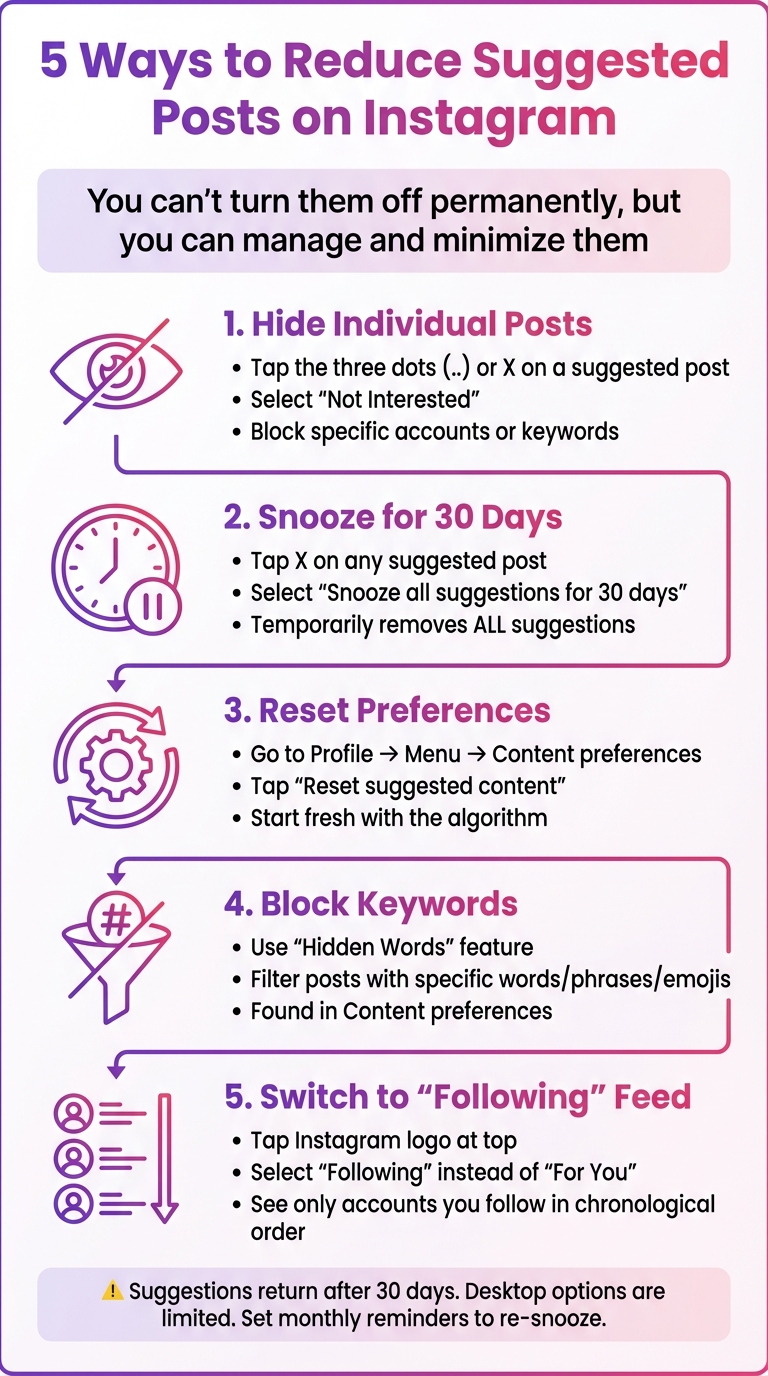
5 Ways to Reduce Instagram Suggested Posts - Quick Guide
Why People Want to Reduce Suggested Posts
The issue boils down to this: Suggested Posts disrupt the experience of seeing content you intentionally chose to follow. These recommendations often pop up between updates from friends and family, making it harder to find posts from the accounts you care about most. It can feel frustrating when unsolicited content interrupts your scroll.
For some users, the volume of these recommendations is overwhelming. One writer even shared that their feed was almost entirely taken over by algorithm-driven content.
And let’s be honest, the algorithm doesn’t always hit the mark. Even Instagram admits, "we may not always get it right". You might end up seeing repetitive posts or suggestions tied to topics you’re no longer interested in. This creates what’s been described as a "content rut" - a loop of similar posts that don’t reflect your changing tastes. As PopSci explains, "While personalization in apps can be useful, these algorithms can take away some of the control you have over your feeds, and will potentially stick you in a content rut that's difficult to find your way out of".
On top of that, extra features like "Follow" buttons and "Because you follow..." labels clutter the feed further, taking away its simplicity.
How to Reduce Suggested Posts on Instagram
If your Instagram feed feels cluttered with suggested posts, there are ways to minimize them using the app's built-in tools. While Instagram doesn’t offer a permanent way to turn them off completely, you can take steps to manage them and keep your feed more focused.
Hide Individual Suggested Posts
When a suggested post pops up in your feed, you can easily hide it. Tap the three dots (...) or the X above the post, then select "Not Interested". This action will remove the post and reduce similar recommendations in the future. If you want to tailor your feed further, you can choose:
- "Don't suggest posts from [account]" to block suggestions from a specific user.
- "Don't suggest posts with certain words" to filter out content based on keywords or emojis.
These steps help fine-tune the algorithm, gradually making your feed more relevant to your interests.
Looking for a more sweeping option? Keep reading to learn how to snooze all suggested posts.
Snooze Suggested Posts for 30 Days
If you need a break from suggested posts altogether, Instagram allows you to snooze them for 30 days. Here’s how:
- Tap the X on any suggested post, then select "Snooze all suggestions for 30 days" from the menu.
- Alternatively, go to your Profile, tap the Menu (three lines), select Settings and privacy, and then navigate to Suggested content. Toggle on "Snooze suggested posts in feed" to activate the feature.
Once enabled, you’ll see a confirmation (like a green checkmark or banner) letting you know suggested posts are hidden for the next month. Keep in mind, though, that this is temporary - after 30 days, the suggestions will return unless you manually renew the snooze.
As Chris Welch from The Verge puts it, "Savor the next month, for it will be free of posts that you care nothing about."
Using Instagram on your computer? Let’s explore your options for managing suggested content on the web.
Manage Suggested Content on Instagram Web
If you’re browsing Instagram on a desktop, your options are more limited. According to the Instagram Help Center, features like "Hide suggested posts" and "Reset suggested content" aren’t available for web users. However, you can still click the X on individual suggested posts to remove them from your view temporarily.
For a more effective solution, switch to a chronological feed. Click the Instagram logo or the "For You" dropdown at the top of the page and select "Following". This will show posts only from accounts you follow, in the order they were posted. Keep in mind, though, that this setting isn’t permanent - you’ll need to reselect it each time you refresh or reopen the site.
These tools and tricks can help you regain some control over your Instagram experience, whether you’re using the app or the desktop version.
Other Ways to Control Instagram Suggestions
Instagram provides more than just the option to hide or snooze posts when it comes to managing your feed. There are additional tools designed to give you greater control over what content appears, helping you fine-tune your experience. Here are two effective methods to refine your feed:
Reset Your Suggested Content Preferences
If you want a clean slate, you can reset the data Instagram uses to tailor your recommendations across the Feed, Explore, and Reels. This allows the algorithm to start fresh, learning from your new likes, comments, and shares.
To reset your preferences, open the Instagram app and head to your Profile. Tap the Menu (three lines) in the top-right corner, scroll to the "What you see" section, and choose Content preferences. From there, tap Reset suggested content, then Next, and confirm your choice to restart your recommendations.
"In just a few taps, you'll be able to clear your recommended content across Explore, Reels and Feed and start fresh."
It’s worth noting that this reset won’t affect your followers, posts, messages, or the ads you see - it strictly impacts how Instagram personalizes your content suggestions. Currently, this feature is only available on the Instagram app for Android and iPhone, not on desktop platforms.
If resetting isn’t enough, you can take it a step further by blocking specific keywords.
Block Keywords to Filter Content
Tired of seeing posts on certain topics? Instagram’s "Hidden Words" feature lets you filter out posts containing specific words, phrases, or even emojis in captions. This gives you more control to tailor your feed to your preferences.
To use this feature, go to your Profile, tap the Menu, and select Content preferences. Then, choose Specific words and phrases and add the terms you want to block.
"We also offer people ways to tell us what they don't want to see in their recommendations by selecting 'Not interested' from the three-dot menu, or using our Hidden Words feature to hide content with certain words or phrases in the caption."
This tool works alongside the option to hide individual posts, creating a layered approach to filtering. Together, these features make it easier to build a feed that aligns with your interests and preferences.
What You Can't Do and Tips for a Better Feed
Instagram doesn’t offer a permanent option to turn off suggested posts. These recommendations are baked into the platform to help users find new creators. As Instagram explains:
"Suggested posts in feed are one way people discover new creator accounts on Instagram and how creators reach new audiences".
If you're trying to manage these suggestions, there are a few things to keep in mind. The snooze feature, for instance, only lasts for 30 days, after which suggestions will reappear. Also, many tools for managing your feed are only available on the mobile app, not the desktop version. And while you can tweak suggested posts, this won’t impact the ads that continue to show up in your feed.
One way to sidestep suggestions is by switching to the "Following" or "Favorites" feeds. These options show posts in chronological order, free from suggested content. Making this switch a regular habit can give you more control over what you see.
Another effective strategy is to carefully manage who you follow. Instagram’s recommendations are heavily influenced by your activity - things like how long you spend on posts, your comments, likes, resharing, and even profile visits. By reviewing and trimming your following list to match your interests, you can influence the suggestions you get. Be mindful of the content you engage with to avoid encouraging unwanted recommendations.
Lastly, consider setting up a monthly routine to refresh your feed. Use this time to snooze or reset suggested posts and ensure your feed stays relevant to your interests. While it takes a bit of effort, this regular upkeep can go a long way in keeping your Instagram experience enjoyable.
Conclusion
Managing suggested posts on Instagram can help bring focus back to your feed. By hiding individual posts, snoozing suggestions for 30 days, or resetting your content preferences, you can take charge of what you see. Blocking specific keywords and switching to the "Following" or "Favorites" feeds offers even more ways to tailor your experience.
Although Instagram doesn’t provide a permanent option to turn off suggested posts, the tools available can make a noticeable difference. Use the "Not Interested" feature regularly and consider setting a monthly reminder to re-snooze suggestions. These small, proactive steps can go a long way in enhancing your time on the platform.
As Instagram states:
"It's important to us that you feel good about the time you spend on Instagram, so we're always working on ways to give you more control over what you see".
This statement highlights Instagram’s effort to improve user experience, but the real power lies in how you use these features. By consistently applying these strategies, you can create a feed that better aligns with your interests.
Ultimately, these adjustments ensure that content from the accounts you care about takes priority over algorithm-driven recommendations. With these tools in place, you’ll spend less time wading through irrelevant posts and more time engaging with the content that truly matters to you.
FAQs
Can I completely turn off suggested posts on Instagram?
While Instagram doesn’t let you permanently disable suggested posts, you can take steps to temporarily reduce their presence. For instance, you can hide them or snooze them for up to 30 days. Just remember, once the snooze period ends, these posts might start popping up again.
To adjust your feed, tap the three dots above a suggested post. From there, you can choose options like "Not Interested" or "Snooze Suggested Posts for 30 Days" to limit how often they appear.
How can I reset my Instagram recommendations to see more relevant content?
To reset your Instagram recommendations, start by opening the Instagram app on your phone. Tap your profile picture in the bottom-right corner to access your profile. Once there, tap the menu icon (three lines in the top-right corner) and select Settings. Next, go to Account and find the option labeled Reset Recommendations or Reset Suggested Content. Follow the prompts to confirm the reset.
This process clears the data Instagram uses to suggest posts, Reels, and Explore content, giving the app a fresh start to tailor recommendations based on your current activity and preferences.
What happens when the 30-day snooze for suggested posts ends?
After the 30-day snooze period for suggested posts expires, Instagram will automatically start showing suggested content in your feed again. Currently, there’s no way to permanently disable these posts, so you’ll need to manually snooze them again if you want to keep them out of sight. While this feature supports Instagram’s algorithm and content discovery objectives, regularly snoozing suggested posts can give you more control over what appears in your feed.


