
Want to save Instagram photos and carousels in their best quality? Here's what you need to know:
- Instagram compresses images to 1,080 pixels wide, reducing quality to 70–85%.
- Downloaders retrieve high-resolution files (up to 1,080px or even 4K in some cases) directly from Instagram's CDN.
- These tools are essential for marketers, creators, and anyone needing high-quality visuals for professional or personal use.
Key Points:
- Why Use Downloaders: Avoid blurry screenshots and save images for campaigns, backups, or inspiration.
- Types of Tools:
- Web-Based: No installation, quick saves, limited features.
- Desktop Apps: Advanced options like batch downloads and metadata preservation.
- Browser Extensions: Convenient, one-click saves but require permissions.
- Legal Reminder: Always get permission for commercial use.
- Best Tools in 2026:
Quick Comparison:
| Tool | Platform Type | Carousels | Batch Downloads | Max Resolution | Login Required |
|---|---|---|---|---|---|
| Toolzu | Web-based | Yes | Yes | Original HD | No |
| SnapInsta | Web-based | Yes | No | Original HD | No |
| INSSIST | Chrome Extension | Yes | Yes (ZIP) | Original HD | Yes |
Pro Tip: Organize downloads with clear file names and folders to streamline your workflow. Always check image quality before using it in campaigns or projects.
How Instagram Photo Downloaders Work in 2026
How URL-Based Media Access Works
Each public Instagram post has a unique URL. When you paste this link into a downloader, it acts as a bridge to Instagram's CDN (Content Delivery Network), pulling the direct file path. The downloader scans the post's HTML for metadata, such as og:image, to locate the highest-resolution file - usually a 1,080px JPEG for photos or an MP4 for videos. For carousel posts, the tool uses the post's unique ID to retrieve all the slides in the set.
Keep in mind, this process only works for public accounts. Instagram's privacy settings restrict access to private profiles, deleted posts, age-restricted content, and disappearing messages. Any tool claiming to bypass these restrictions is likely unreliable or unsafe.
Understanding this retrieval process lays the groundwork for exploring the different downloader options available in 2026.
Types of Instagram Photo Downloaders
Now that we know how these tools fetch high-quality media, let's break down the main types of Instagram photo downloaders you can use in 2026.
Web-Based Tools
These tools run directly in your browser. All you need to do is paste the URL of a public Instagram post to download the content. They're perfect for quick, one-time saves, but they only work with public posts and often come with ads.
Desktop Applications
Desktop apps require installation but offer more advanced features. For example, 4K Stogram, which boasts a 4.6/5 rating from over 15,600 reviews, now includes auto-download features. This means it can automatically save new posts from accounts you follow directly to your device. These apps are ideal for users who need to archive large volumes of content or manage extensive media libraries.
Browser Extensions
Extensions integrate directly with Instagram's web interface, adding a download button to posts for convenient one-click saves. They’re great for frequent, quick downloads but require broader browser permissions. It’s a good idea to check the "Last Updated" date and user reviews before installing any extension.
"The safest download tools are the ones that work anonymously. If a service demands your login details just to download a public image, it's a huge red flag." - PostFast
Comparing Downloader Types
| Feature | Web-Based Tools | Desktop Apps | Browser Extensions |
|---|---|---|---|
| Installation | None required | Required | Required (browser add-on) |
| Best Use Case | Quick, one-off saves | Bulk archiving, monitoring | Frequent single-post saves |
| Speed | Fast (no setup) | Requires installation | Instant downloads |
| Output Quality | Good (1,080px) | Excellent (original quality, metadata) | Good (1,080px) |
| Batch Support | Limited | High (full accounts, hashtags) | Moderate |
| Privacy Risk | Low (if no login required) | Medium (may need login for private content) | Medium (browser permissions) |
The best option depends on your needs. Casual users will likely find web-based tools sufficient, while those managing larger content libraries or working in marketing will appreciate the advanced features of desktop applications.
sbb-itb-3b12fba
How To Download Instagram Photos 2026 (iPhone & Android)
How to Choose a Reliable Instagram Photo Downloader
Instagram Photo Downloader Tools Compared: Toolzu vs SnapInsta vs INSSIST (2026)
Now that you know how Instagram downloaders function, picking the right tool is essential to ensure you get the results you need.
What to Look for in a Downloader Tool
When evaluating downloader tools, focus on their ability to fetch high-quality, uncompressed files directly from Instagram's CDN. Look for tools that can retrieve full-resolution images (typically 1,080 x 1,350px). It's also helpful if the tool supports downloading entire albums and offers batch downloading to handle multiple files at once.
Security is a top priority. Reliable tools will never ask for your Instagram password to access public content. Choose tools that use HTTPS, require minimal permissions, and provide a transparent privacy policy.
Recommended Tools for 2026
Based on the above criteria, here are a few standout tools known for their quality, features, and secure operation:
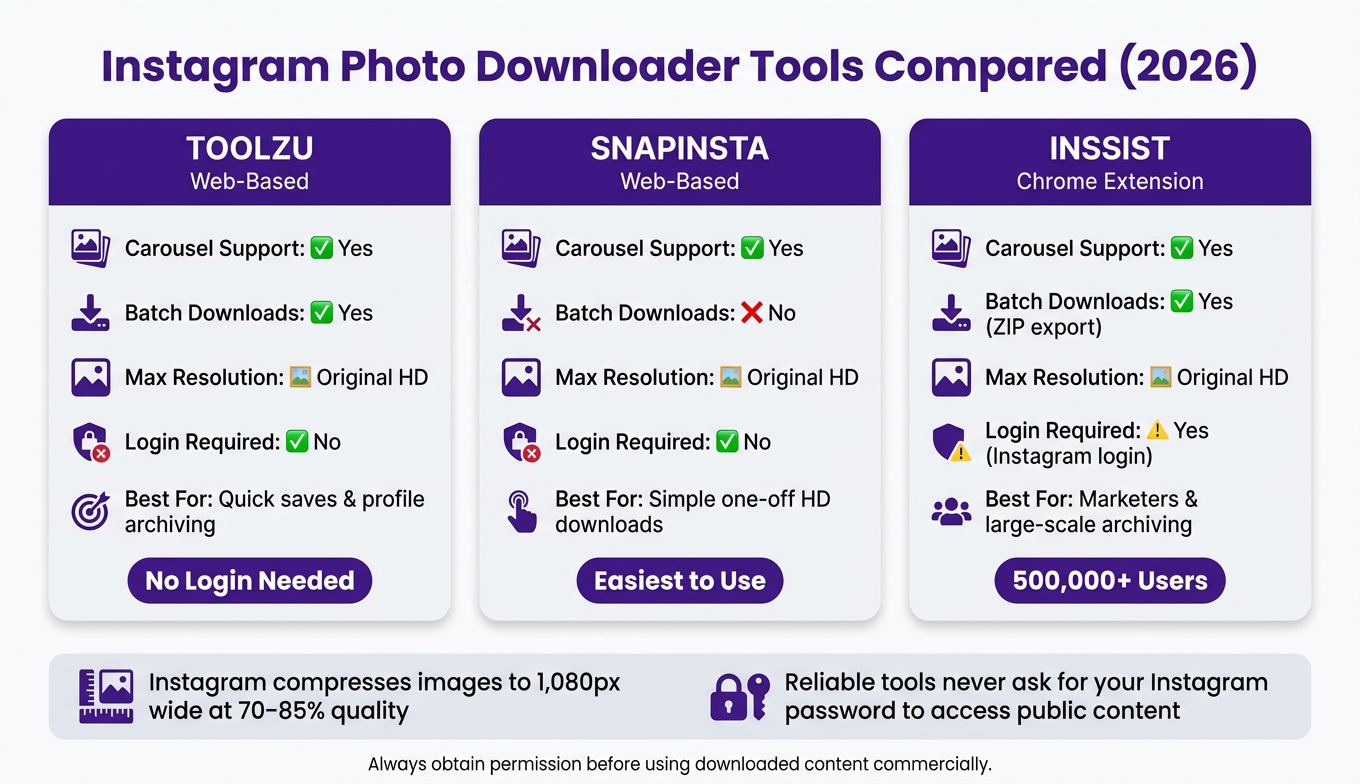
- Toolzu: A web-based service that allows carousel and batch profile downloads without requiring a login.
- SnapInsta: A straightforward, web-based option that delivers images in original HD resolution without needing a login.
- INSSIST: A popular Chrome extension with over 500,000 users. It supports ZIP exports, preserves metadata (like username, caption, and post date), and offers carousel downloads. Note: Some features require logging into Instagram.
Side-by-Side Tool Comparison
| Tool | Platform Type | Carousels | Batch Downloads | Max Resolution | Login Required |
|---|---|---|---|---|---|
| Toolzu | Web-based | Yes | Yes | Original HD | No |
| SnapInsta | Web-based | Yes | No | Original HD | No |
| INSSIST | Chrome Extension | Yes | Yes (ZIP export) | Original HD | Yes (to IG) |
For casual users, Toolzu or SnapInsta will handle most needs without requiring any setup. If you're managing a larger content library or working in marketing, INSSIST provides advanced features like metadata preservation and batch downloading, making it ideal for large-scale archiving.
Step-by-Step Guide to Downloading Instagram Posts and Carousels
Once you've chosen your preferred tool, here's a straightforward breakdown for downloading single images, carousel posts, or multiple posts in bulk. After downloading, be sure to check out our tips for organizing these files to improve your marketing workflow.
How to Download a Single Photo
Start by opening the Instagram post, either in your browser or the app. Click the ⋯ icon in the top-right corner of the post and select "Copy Link." Paste this link into the downloader's input field and click "Download." The tool will generate a preview of the high-resolution file. Simply click "Save" to download it to your device - this will usually go straight to your Downloads folder, whether you're using Windows, Mac, iOS, or Android.
"Taking a screenshot reduces quality and adds clutter to your screen. Our Instagram Image Saver fetches the Original Resolution (1080x1350) file directly from Instagram's CDN." - InstaSnap
This process ensures you get the original, uncompressed image at a resolution of up to 1,080 x 1,350px. Prefer a browser extension? INSSIST offers an alternative. On Instagram.com, hover over the photo, click the "Pin" icon that appears, and then open the extension's Inspiration tab. From there, you can download the image along with its metadata intact.
Next, let’s look at how to handle carousel posts using similar techniques.
How to Download Carousels and Albums
Carousel posts can include up to 10 photos or videos. To download, paste the post's URL into your chosen tool and follow the prompts. Tools like Toolzu will automatically detect all the media in the post and provide individual download links or a "Download All" option for batch downloading. Be sure to check the file sizes to confirm you're getting the quality you need.
How to Bulk Download Multiple Posts
For saving multiple posts efficiently, bulk download methods are a game-changer. INSSIST’s "pin and export" feature is particularly handy. While browsing Instagram, pin the posts you want to save, then head to the Inspiration tab and export all pinned posts as a single ZIP file. For profile-wide downloads, Toolzu allows you to input a username and download up to 12 posts at once from any public account. This is especially helpful for archiving a creator’s recent content for campaign planning or competitive analysis. Once downloaded, organize the files by creator handle to simplify credit tracking and keep your workflow tidy.
Organizing and Using Downloaded Media for Marketing
Once you've secured high-quality downloads, the next step is to organize them effectively to maximize their marketing potential. A well-structured library of posts and carousels ensures you're not wasting time searching for files or dealing with mislabeled chaos.
File Naming and Folder Organization
A consistent naming system is key to keeping your archive searchable. Try using a format like username-topic-date-format, such as nikerunning-campaign-2026-05-portrait.jpg. For carousel downloads, add numbers like -01, -02 to preserve the correct slide order.
Folders should be structured by purpose - think campaign, date, or content type. Campaign assets should be held for at least 12 months, while inspiration files can be cleared out quarterly. To keep things running smoothly, set aside time weekly to remove duplicates, clean up temporary files, and update your index.
Checking and Managing Image Quality
Before putting your downloads to work, double-check that each photo meets a minimum width of 1,080px. For critical assets, test the quality on at least two devices to ensure consistency. If you're planning to use images for large-format prints or high-res ads, consider using AI upscaling tools to enhance the details without sacrificing quality. Be cautious of file sizes - photos smaller than 200KB might be compressed thumbnails, which won't hold up for professional use.
Using Downloaded Assets with Outfame for Growth
Your archived content becomes a real asset when it’s integrated into your marketing strategy. Within Outfame, these visuals can guide the planning of future posts, helping you identify successful formats and color palettes. Outfame's analytics and growth dashboard let you track how your posts stack up against benchmarks from your archive.
Downloaded assets can also fuel UGC libraries and mood boards, providing inspiration for creative briefs. With Outfame's AI-driven audience targeting, you can align your visual strategy with audience preferences. To ensure your content is secure, back up your organized files on both a local drive and a cloud storage service. These steps not only protect your work but also streamline your content creation process.
Conclusion: Key Takeaways for Downloading Instagram Media in 2026
Downloading Instagram media effectively and ethically can play a big role in shaping your content strategy. To ensure success, use secure tools that allow you to retrieve high-quality images without requiring a login. For any commercial use, always secure explicit, written permission from the original creator. Keeping a record of these permissions can save you from potential issues later.
Organizing your downloads is just as important as obtaining them. Use clear naming conventions and sort files into folders based on campaigns or content types. This makes your media library practical and easy to navigate. Also, double-check the quality of your downloads to make sure they meet your standards before incorporating them into your projects.
Once your archive is well-organized, tools like Outfame’s growth dashboard can take your strategy further. With its AI-powered audience targeting and performance tracking, you can pinpoint the formats that work best, measure results, and fine-tune your approach based on audience preferences.
FAQs
Why can’t some Instagram posts be downloaded?
Some Instagram posts can’t be saved directly because Instagram has built-in restrictions to prevent this. They block right-click functionality, restrict downloads of private or limited-access content, and often provide compressed versions of media. These steps are in place to safeguard user privacy and uphold content ownership rights.
How do I make sure I’m downloading the real full-size image?
To save a full-size image from Instagram, use tools designed to fetch the highest resolution directly from Instagram's servers. Screenshots won't cut it - they only capture compressed versions of the image. Instead, copy the post's URL, paste it into a reliable downloader, and choose the option for full-quality. This method ensures you get the best resolution available, which is usually up to 1080 pixels wide.
What’s the safest way to download without risking my account?
To download Instagram content safely, stick to tools that emphasize security, don’t ask for your login details, and align with Instagram’s guidelines. Look for options that maintain the original quality of the content and steer clear of tools that add watermarks.
Make sure to follow copyright laws and Instagram’s terms by only downloading content you own or have explicit permission to access. Stay away from unauthorized apps or browser extensions that might put your account at risk or breach platform rules.


