
Instagram accounts are hacked every 11 seconds. Protecting yours is critical, especially with evolving threats like AI-driven scams. Here's how you can secure your account effectively:
- Set a strong password: Use at least 16 characters with a mix of letters, numbers, and symbols. Avoid reusing passwords.
- Enable two-factor authentication (2FA): Use an authenticator app or a physical security key instead of SMS for better protection.
- Monitor login activity: Regularly check active sessions and log out of unfamiliar devices.
- Update recovery details: Ensure your email and phone number are current and secure.
- Remove risky third-party apps: Revoke access to apps you no longer use.
- Spot phishing attempts: Verify Instagram messages in the app and avoid clicking suspicious links.
Staying vigilant and following these steps can reduce your risk of hacking by 94%. Regular reviews and updates are key to keeping your account safe.
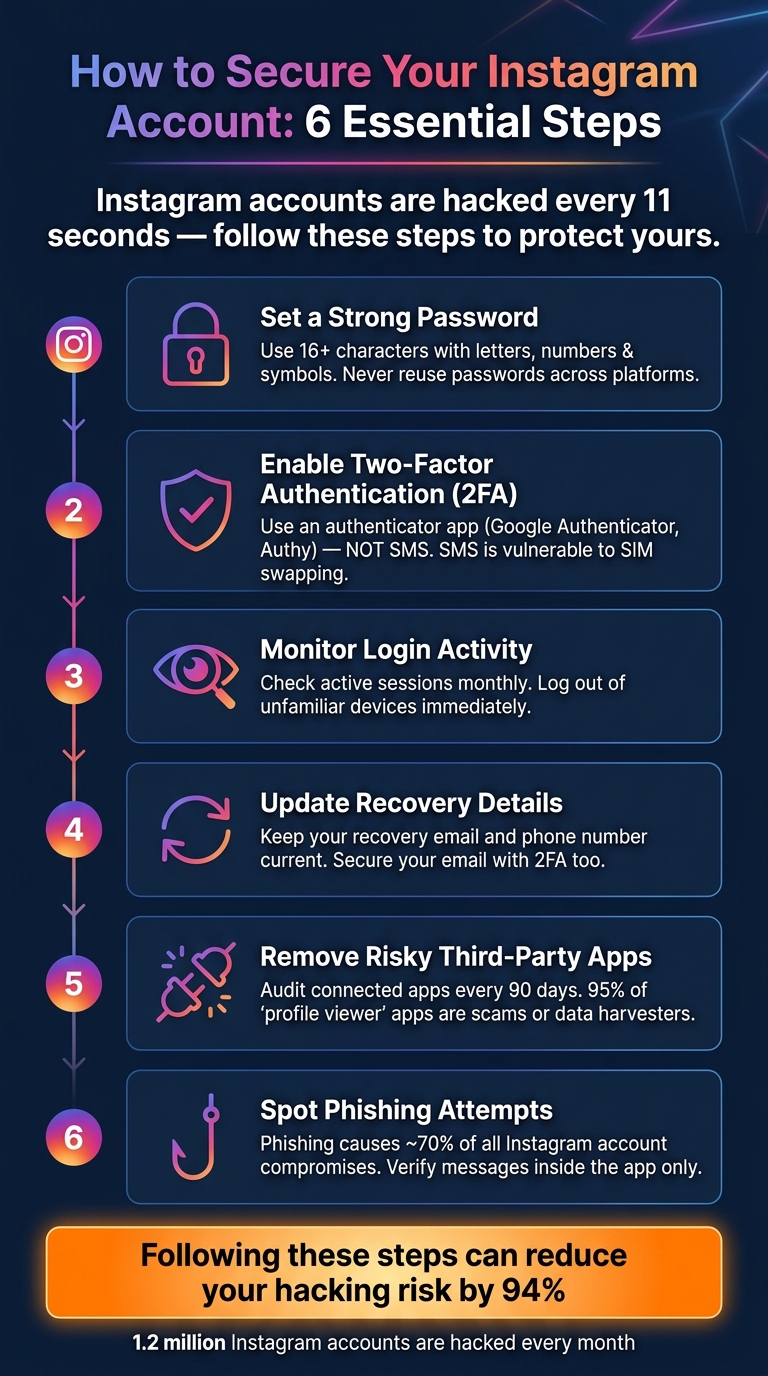
How to Secure Your Instagram Account: 6 Essential Steps
How To Prevent Your Instagram From Getting Hacked
1. Set a Strong Password for Your Account
Your password is the first line of defense against potential intrusions. Using a weak or recycled password can undermine even the best security practices.
"Most account compromises start with a weak or reused password. Change it immediately if it's shared with other accounts." - John A., Founder, Creator Security Stack
1.1 How to Create a Strong Password
To safeguard your account, steer clear of using personal details like your name or birthday. Also, never reuse passwords across different platforms. These habits make you an easy target for credential stuffing - a method where hackers exploit leaked username and password combinations from previous breaches to access your account.
An effective Instagram password should:
- Be at least 16 characters long
- Include a mix of uppercase and lowercase letters, numbers, and special characters
If a random string feels too complicated to remember, consider using a passphrase. For instance, something like correct-horse-battery-staple-99 is both easy to recall and far more resistant to attacks than predictable options like password123 or yourname1990.
| Password Type | Example | Strength |
|---|---|---|
| Weak | password123, yourname1990 |
Low - easily guessed or brute-forced |
| Strong (Random) | xK#9mP$2wL@nR7qT |
High - best used with a password manager |
| Strong (Passphrase) | correct-horse-battery-staple-99 |
High - long, unique, and easy to remember |
Once you've created a secure password, consider using a password manager to store and manage it with ease.
1.2 Using Password Managers
While a strong password is essential, managing it effectively is just as important. Password managers can securely store complex passwords, so you don’t have to rely on memory.
Popular tools like Bitwarden (free), 1Password, and NordPass can generate and store unique passwords for each of your accounts. As Mr. Elite, Founder of SecurityElites.com, puts it:
"Use a password manager... to generate and store a completely unique password for Instagram. You never need to remember it. The password manager remembers it." - Mr. Elite, Founder, SecurityElites.com
Be cautious about using browser-based password storage, like Chrome’s "remember password" feature. John A. from Creator Security Stack warns:
"If your computer gets compromised through malware, every saved password gets stolen".
Dedicated password managers offer encrypted storage, making your credentials far less vulnerable to malware. Lastly, don’t overlook the security of your email account. Since it acts as a recovery tool for Instagram, protect it with a strong, unique password and enable additional security measures.
2. Turn On Two-Factor Authentication (2FA)
Even if someone gets hold of your password, 2FA adds an extra layer of security with a unique verification code. Instagram emphasizes that enabling two-factor authentication is one of the best ways to safeguard your account from hackers.
"Two-factor authentication (2FA) isn't foolproof, but it is one of the best ways to protect your accounts from hackers." - Pieter Arntz, Malware Intelligence Researcher, Malwarebytes
2.1 How to Enable 2FA on Instagram
Here’s how you can activate 2FA on Instagram:
- Tap your profile picture in the bottom right.
- Open the Menu (three horizontal lines) in the top right.
- Go to Accounts Centre and select Password and security.
- Tap Two-factor authentication and choose your Instagram account.
- Pick your preferred verification method.
Once 2FA is set up, Instagram will notify you of any login attempts from unrecognized devices. You’ll have the option to approve or deny these attempts. If you deny access, Instagram will prompt you to reset your password immediately.
Here’s a crucial step many overlook: download your backup codes right after enabling 2FA. These 8-digit codes are your safety net if you lose access to your phone or authentication app. Store them securely in a password manager or another safe location - don’t just leave them as a screenshot on your phone.
2.2 Choosing the Right Verification Method
Instagram provides several ways to receive your 2FA codes: authentication apps, SMS (text messages), WhatsApp, or a physical security key. However, not all methods offer the same level of protection.
SMS is the easiest to use but also the least secure. Hackers can exploit techniques like SIM swapping to intercept SMS codes.
"SMS-based 2FA is vulnerable to SIM swapping. An authenticator app generates codes locally on your device and can't be intercepted." - Dr. Erdal Ozkaya, CISO and NATO Cybersecurity Advisor
For better security, consider using an authentication app like Google Authenticator, Microsoft Authenticator, or Authy. These apps generate codes directly on your device, bypassing cellular networks and protecting you from SIM-based attacks.
Here’s a quick comparison of the options:
| Method | Security Level | Key Vulnerability |
|---|---|---|
| Security Key (e.g., YubiKey) | Highest | Losing the key physically |
| Authentication App | High | Losing your device without backups |
| Moderate | Relies on SMS 2FA being enabled | |
| Text Message (SMS) | Low | Susceptible to SIM swapping |
For creators or businesses with large followings, investing in a hardware security key like a YubiKey is a smart move. It’s phishing-proof and offers the strongest protection available. For most other users, switching from SMS to an authentication app is a simple yet impactful step toward better account security.
After enabling 2FA, take a moment to review your login activity and ensure your recovery details are up to date. This extra effort can make a big difference in keeping your account safe.
3. Check Your Login Activity and Recovery Details
Enabling two-factor authentication (2FA) is a great start, but it’s not enough on its own. You also need to monitor your login activity and ensure your recovery details are secure. Why? Because 1.2 million accounts are hacked every month, and many users don’t even realize it until weeks later. Regularly checking your active sessions and updating your recovery info can help you catch suspicious activity early.
3.1 How to Review Active Sessions
To check which devices are logged into your account, head to Settings > Accounts Center > Password and security > Where you're logged in. Here, you’ll find a list of devices, their approximate locations, and the last time they were active.
Look for anything unusual. For instance, if you see a Windows PC listed but only use an iPhone, or if there’s a login from a state or country you’ve never visited, that’s a red flag. If something looks off, tap Log out on the suspicious device and immediately change your password to block further access.
"Instagram sessions work across devices, so once you log in, that device stays trusted until you log out or reset your password." - Bitdefender
Keep in mind that location data based on IP addresses isn’t always precise. Seeing a nearby city you don’t recognize isn’t necessarily a problem. However, a login from a completely different country or an unfamiliar device type is cause for concern.
3.2 Keeping Your Recovery Email and Phone Number Up to Date
After reviewing your active sessions, the next step is to ensure your recovery details are secure. These details - your recovery email and phone number - are critical. They’re essentially your safety net if you ever get locked out of your account. If a hacker manages to change them, you could lose access entirely.
"Your recovery email and phone number are what Instagram uses to verify your identity if you get locked out. If a hacker gains access and changes these... you lose the ability to recover your own account." - SecurityElites
To check and update your recovery details, go to Accounts Center > Personal Details. Make sure the email address and phone number listed are ones you actively use and control. If you see any unfamiliar contact information, remove it immediately - it might have been added by someone else. It’s also a good idea to secure your recovery email with a strong password and 2FA, as it’s essentially the master key to your Instagram account. Even with 2FA enabled, a hacker who gains access to your email can reset your Instagram password.
Make it a habit to review your sessions and recovery details at least once a month. It only takes a couple of minutes but could save you from losing your account entirely.
4. Remove Suspicious Third-Party Apps
Every app linked to your Instagram account could pose a security risk. As John A from Creator Security Stack warns:
"Every app you've connected to Instagram is a potential entry point for hackers. That quiz app from two years ago? That follower analytics tool you tried once? They might still have access to your account."
This happens because third-party apps use OAuth tokens - essentially digital keys that bypass your password and two-factor authentication (2FA). Worse, attackers can create offline access tokens that remain valid even after you change your password.
4.1 How to Find Linked Apps
Locating your connected apps is simple. On mobile, navigate to Settings > Accounts Center > Apps and Websites. On desktop, click More (bottom left) > Settings > Website permissions > Apps and Websites.
The apps will be categorized as follows:
| Status | What It Means | Data Access |
|---|---|---|
| Active | Used in the last 90 days | Full access to any non-public information you've shared |
| Expired | Not used in over 90 days | Restricted access to non-public data, but public info (like username and bio) is still visible |
| Removed | Manually revoked | Only public info remains accessible; previously collected data may still be stored by the app |
Check the Active tab for any apps you don’t recognize or no longer use. Be especially cautious with tools that promise free followers, analytics, or profile tracking. Around 95% of apps claiming to reveal who viewed your profile are phishing scams or data-harvesting operations.
4.2 How to Remove Apps You No Longer Need
Disconnecting an app is quick and easy. In the Apps and Websites section, select the app you want to remove and choose Remove or Revoke Access. After clearing out the Active tab, switch to the Expired tab and select Remove All to revoke old permissions.
Make it a habit to review your connected apps every 90 days and remove any you’re no longer using. If you need one later, you can always reconnect it. While you’re in the Accounts Center, check for any unrecognized Facebook accounts linked to your Instagram. Hackers sometimes link their own accounts as a way to maintain access after a breach.
Keep in mind, though, that removing an app only stops it from accessing your non-public data in the future. It doesn’t erase any data the app developer has already saved on their servers. That’s why it’s smart to be cautious about which apps you connect in the first place.
Once you’ve cleaned up suspicious apps, you’ll be better equipped to focus on other steps to keep your account secure, like staying vigilant against phishing attempts.
5. How to Spot and Avoid Phishing Attempts
Phishing is the top reason Instagram accounts get compromised - accounting for about 70% of all cases analyzed by cybersecurity professionals. Scammers use deceptive tactics to trick you into giving away sensitive information. While strong passwords and two-factor authentication (2FA) are essential, recognizing phishing attempts is equally important to protect your account.
5.1 Warning Signs of a Phishing Scam
Phishing scams often rely on creating a sense of urgency. Messages like "Your account will be deleted in 24 hours" are designed to make you act quickly without thinking. Common phishing tactics include fake copyright infringement warnings, offers for blue badge verification, bogus login alerts, and fraudulent brand collaboration requests that redirect you to external "portals."
One major red flag is a suspicious link. Scammers use techniques like typo-squatting - altering URLs slightly (e.g., instargram.com) or using strange subdomains (e.g., instagram.password.net) - to mimic legitimate websites. Always hover over links to check the URL before clicking, and if something seems off, don’t engage.
"Phishing works because it exploits human trust, not technical vulnerabilities." - Dr. Erdal Ozkaya, CISO
Scammers have also started using AI to create fake Instagram login pages that look highly convincing, complete with proper grammar and polished design. Don’t assume a professional-looking page is legitimate.
5.2 How to Verify Official Instagram Messages
To avoid falling for phishing attempts, verify any communication claiming to be from Instagram directly within the app. Go to Settings > Accounts Center > Password and Security > Recent Emails to view all official emails sent by Instagram in the past 14 days. If the message you received isn’t listed there, it’s fake - no exceptions.
"If there's nothing suspicious inside the app, the message you received is almost certainly a phishing attempt." - Bitdefender
Legitimate emails from Instagram come only from specific, verified domains. Here’s a quick guide:
| Domain | Purpose |
|---|---|
| @mail.instagram.com | General updates and security notifications |
| security@mail.instagram.com | Alerts for reversing unauthorized email changes |
| @facebookmail.com | Meta-related notifications and security alerts |
| @meta.com | Official corporate and support communications |
If you get a security warning, avoid clicking on any links in the email. Instead, confirm its legitimacy through the Instagram app. Also, keep in mind: Instagram will never ask for your password or multi-factor authentication (MFA) code through email, direct messages, or chat. As Vlad Constantinescu, a Security Analyst at Bitdefender, emphasizes:
"Instagram will never ask you for your password or MFA code through email, DM or 'support' chat. If someone requests a code, assume that they're attempting a real-time account takeover."
If you accidentally click a phishing link, take immediate action. Forward the phishing email to phish@instagram.com and scan your device for malware.
6. How Outfame Supports Secure Instagram Growth
When expanding your Instagram following, security should be a top priority. Many growth services ask for your login credentials, which can leave your account vulnerable to potential attacks.
6.1 Growing Your Account Without Sharing Your Password
Outfame offers a smarter, safer way to grow your Instagram presence. This AI-powered growth platform helps creators and brands attract engaged followers without ever requiring your password. Unlike other services, Outfame doesn’t log into your account, post on your behalf, or send automated messages. As Siegfried from the Outfame Help Center explains:
"We never ask for your password and never log into your account. You stay fully in control of your profile, your content, and your interactions at all times." - Siegfried, Outfame Help Center
This approach is especially important given past vulnerabilities, such as the June 2026 logic flaw in Meta's AI support system. That flaw allowed hackers to take over high-value accounts - even those with two-factor authentication - by tricking a chatbot into linking a new email address. By never storing or accessing your login details, Outfame eliminates such risks entirely.
This strong security focus forms the backbone of Outfame’s growth strategies.
6.2 Features That Keep Your Account Safe While You Grow
Avoiding risky tactics is crucial for protecting your Instagram account. Unlike services that rely on mass interactions or follow/unfollow loops, Outfame uses AI to connect you with users who are genuinely interested in your content.
"Because growth happens through genuine discovery rather than forced actions, your audience develops in a way that feels natural and long term." - Siegfried, Outfame Help Center
Outfame’s approach includes several safeguards to ensure secure growth:
- AI-driven targeting: Your profile is matched with users who have a real interest in your content.
- Gradual follower delivery: Followers are added over 24–72 hours to avoid sudden spikes that could raise red flags.
- 24/7 monitoring: The Outfame Max™ AI tool continuously tracks activity to ensure it stays within safe limits.
Plans start at $39 per month and come with a growth guarantee - if your follower count doesn’t increase, you’ll get a full refund, no questions asked.
Conclusion: Keep Your Account Secure Over Time
Protecting your Instagram account isn’t a one-and-done task - it’s an ongoing effort that requires regular attention. From using strong, unique passwords to staying on top of app permissions, maintaining security means being proactive. At the heart of this strategy: a unique password, two-factor authentication (preferably with an authenticator app), and regular reviews of connected apps and login activity.
Phishing remains a persistent threat. Regularly reviewing your login activity and third-party app connections is essential to staying ahead of potential risks.
The numbers speak for themselves. Over 1.2 million Instagram accounts are hacked every month, and nearly 28% of recovered accounts are compromised again within 90 days when users fail to implement stronger security measures. A simple routine - like a monthly review of your login activity and an annual check of your recovery email and phone number - can dramatically lower your risk.
Here’s a practical schedule to help you stay on track:
| Security Task | Frequency |
|---|---|
| Review Login Activity | Monthly |
| Audit Third-Party Apps | Every 3 months |
| Update Recovery Info | Annually |
| Backup Account Data | Every 3–6 months |
This consistent effort doesn’t just protect your account - it creates a foundation for secure growth.
Lastly, don’t overlook your email's security. Your Instagram recovery email is a critical piece of the puzzle. Make sure it has a strong, unique password and two-factor authentication enabled.
For growth without compromising your security, consider using a safe, password-free solution like Outfame. It’s a step toward keeping your account protected while expanding your reach.
FAQs
What should I do first if my Instagram is hacked?
If you can still log in, head to the Meta Accounts Center and review your Login Activity. End any sessions you don’t recognize right away. Next, update your password to secure your account.
Check your email for messages from Instagram about recent account changes. These emails might include a link to reverse any unauthorized updates.
If you’re locked out, visit Instagram’s hacked account recovery page. From there, you can request a login link or a security code to regain access.
How can I recover my account if I lose my 2FA device?
If you've lost access to your two-factor authentication device, you can use the backup codes you received during the setup process to log in. Can't find those? No problem - head to Instagram’s recovery page and request a login link or security code sent to your registered email or phone number. If these methods don’t work, Instagram provides additional support steps, which may involve verifying your identity. This could include submitting a video selfie to confirm you're the account owner.
How do I know if a growth service is safe to use?
To make sure a growth service is safe, verify that it steers clear of shady practices like bot networks, data scraping, or bypassing Instagram’s API. Trustworthy services rely on Meta-approved tools and official APIs, steering away from risky automation that could get your account banned. Be especially wary of platforms that ask for your account password. For example, Outfame provides secure, organic growth without needing passwords, using its own AI tools to help creators expand their audience safely.


