
Instagram now lets you edit direct messages after sending! Launched on March 4, 2024, this feature allows you to fix typos or adjust your tone within 15 minutes of sending a message. Here's how it works:
-
How to Edit Messages:
- Open the chat and find the message.
- Long-press (mobile) or hover and click the three dots (desktop).
- Select "Edit", make changes, and save.
- An "Edited" label will appear on the message.
-
Key Details:
- Only text messages can be edited (no media, mentions, or commands).
- You can edit a message up to 5 times within the 15-minute window.
- Available on the Instagram app for iOS and Android, not on the web.
If you don't see the feature, update your app or check if it's available in your region. This update helps you refine your messages quickly, whether you're chatting with friends or managing business conversations.
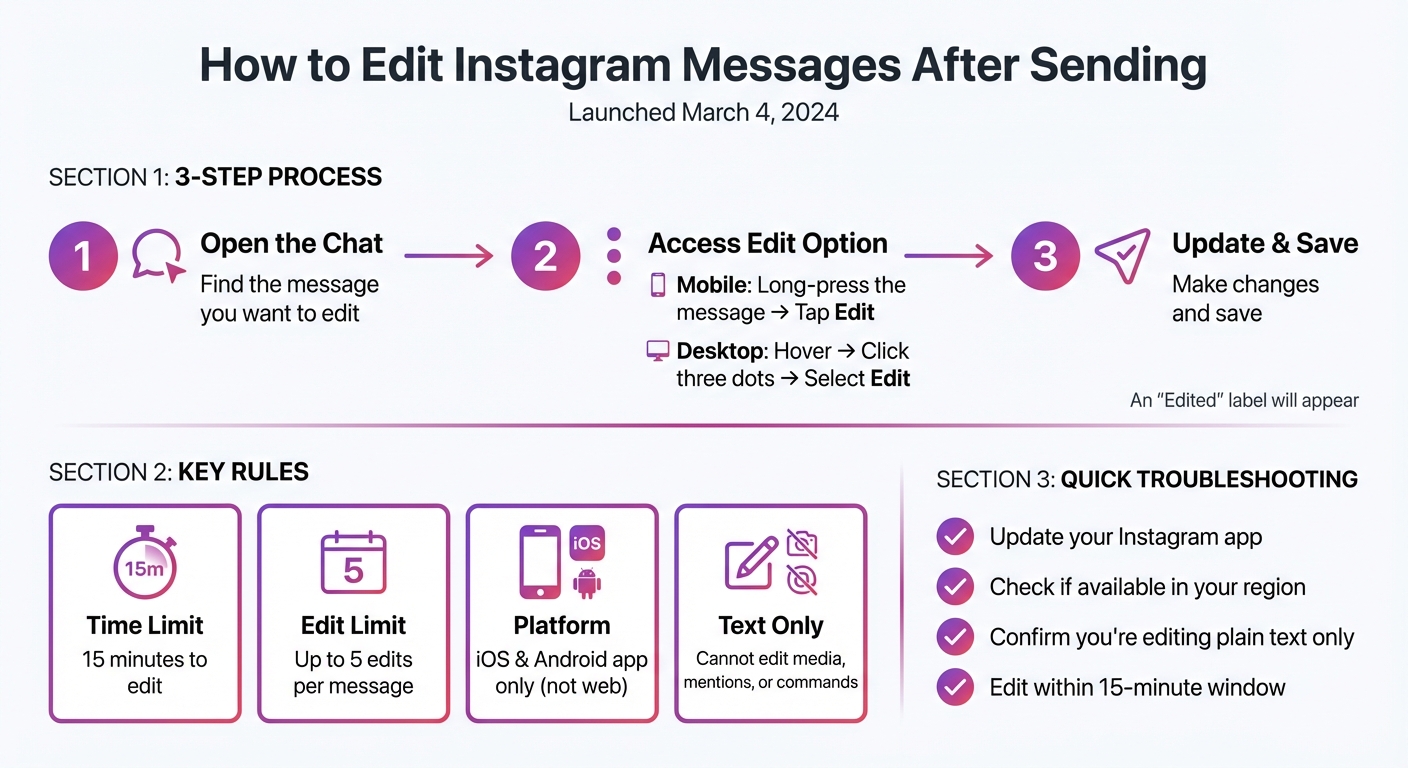
How to Edit Instagram Messages: 3-Step Process and Key Limitations
How to Edit Message in Instagram (NEW UPDATE)
How to Edit Instagram Messages After Sending
Instagram gives users the ability to edit their text messages on both mobile devices (iOS and Android) and desktop (Instagram.com). You can make changes up to 5 times within a 15-minute window after sending the message.
Here’s how you can edit your messages:
Step 1: Open the Chat and Find the Message
Start by opening Instagram and tapping the Messenger/Messages icon to access your chats. Select the conversation where the message you want to edit is located, then find the specific message.
Step 2: Access the Edit Option
- On mobile: Press and hold the message until a menu pops up, then tap Edit.
- On desktop: Hover over the message, click the Options button (the three dots), and select Edit.
Keep in mind that the Edit option disappears after 15 minutes.
Step 3: Update the Text and Save
Make the necessary changes to your message in the input field. When you're done, tap the Send icon (or click the checkmark) to save your edits. The original text is replaced instantly, and an "Edited" label appears. Recipients will only see the revised version of the message.
Limitations of Instagram's Message Editing Feature
To make the most of Instagram's message editing feature, it’s important to be aware of its restrictions. While the tool gives you more control over your chats, it does come with a few boundaries that could impact how you use it.
15-Minute Time Limit
You only have 15 minutes after sending a message to make any edits. Once this window closes, the Edit option disappears from the menu, leaving you with the option to unsend the message instead. This means you’ll need to review your messages quickly to catch any mistakes or changes you want to make before the timer runs out.
Text Messages Only
The editing feature is strictly limited to plain text messages. Media like photos, videos, or voice notes cannot be edited. Additionally, messages containing mentions or commands are also off-limits for editing. According to the Instagram Help Center, "You cannot edit messages that include mentions or commands, but you can unsend them". For these types of messages, your only option is to delete them using the Unsend feature and send a corrected version.
Edited Label Appears on Messages
When you edit a message, an "Edited" label will appear above the text bubble to indicate that changes were made. As Amrita Khalid from The Verge points out, "The revised message will display the word 'Edited' in the conversation, so if you're hoping they just hadn't noticed, you still might be better off deleting the original and resending". While recipients won’t be able to see the original text or a detailed edit history, the label ensures transparency and keeps the conversation accountable.
Fixing Common Problems with Message Editing
Struggling to edit your Instagram messages? Don’t worry - most issues can be resolved quickly. Common problems often stem from using an outdated app version, regional limitations, or trying to edit content that isn’t supported. Follow these tips to troubleshoot and get back on track.
Update Your Instagram App
First, make sure your Instagram app is up to date. If you don’t see the Edit option when you long-press a message, there’s a good chance your app needs updating. Head to your device’s app store, download the latest version of Instagram, and restart the app. Once updated, try editing your message again. As Meta Newsroom puts it, "Whether it's a typo or something just doesn't sound right, you can now edit messages up to 15 minutes after sending". If updating doesn’t work, the feature may not yet be available for your account.
Check if the Feature is Available in Your Area
Keep in mind that Instagram’s message editing feature is only available on the mobile app for Android and iPhone. Saikat Basu from Lifewire explains, "The Edit feature is still unavailable on Instagram's web or mobile web versions". If you’re attempting to edit a message through a browser or on a computer, you won’t find the option. Switch to the official mobile app for access. Also, Instagram rolls out features in stages, so even if your app is updated, the feature might not have reached your account yet.
Confirm You're Editing a Text Message
Not all messages are editable. The Edit option only works for plain text messages - media files, voice notes, and messages containing mentions or commands are not supported. For example, if your message includes an @username mention, the Edit button won’t appear. Additionally, Instagram limits edits to five per message. If you’ve hit that limit, you’ll need to use the Unsend feature instead.
Tips for Using the Message Editing Feature
Here’s how you can make the most of Instagram’s 15-minute editing window for both personal and business conversations. These practical tips will help you refine your messages in real-time.
Fix Typos and Mistakes Quickly
Spotted a typo or an awkward phrase? Don’t wait - fix it right away. Instagram gives you up to 15 minutes to edit a message, with a limit of 5 edits per message. As Saikat Basu from Lifewire explains, "A face-saving feature like the ability to edit messages instantly can rescue everything from typos to knee-jerk comments". Keep in mind, an "Edited" label will appear above the message, letting others know changes were made.
Improve Business Messages
For creators, brands, and influencers, this feature is a game-changer for refining professional communication. Sent a collaboration pitch that feels too pushy? Or maybe a product announcement that’s unclear? You have 15 minutes to tweak the tone or add clarity. Aisha Malik from TechCrunch notes, "The ability to edit your DMs lets you fix a typo or change things around if your message doesn't quite sound right". This is particularly handy when addressing potential sponsors or customers - you can correct pricing errors, add missing details, or adjust your tone without the hassle of unsending and rewriting.
Pair with Tools Like Outfame

Take it a step further by combining Instagram’s editing feature with tools like Outfame, which uses AI to boost growth and streamline communication. Outfame’s 24/7 automated growth ensures a steady flow of new connections, allowing you to keep your DMs polished and professional - even when juggling multiple conversations throughout the day.
Building an audience worth messaging? See how Outfame brings real Instagram followers from the accounts and hashtags you choose.
Conclusion
Instagram's editing feature gives you more control over your DMs than ever before. Whether it's fixing a typo, adjusting your tone, or adding missed details, you can now tweak your messages without interrupting the flow of your conversations.
This feature not only makes it easier to correct mistakes but also improves the way you communicate. With Instagram leaning heavily into messaging as a core function, DMs have become the go-to method for connecting with others on the platform. The ability to edit your messages ensures your conversations stay polished - whether you're catching up with friends or reaching out to potential brand collaborators.
By following the outlined steps, you can keep your messages sharp and professional. Just update your app, review your sent messages, and make quick adjustments as needed. For creators and businesses looking to maintain strong, professional communication with their audience, this tool is a game-changer.
The edit option is available on the latest versions of the Instagram app for Android and iOS. Make sure your app is up to date and start using this feature to enhance your messaging experience today.
FAQs
How can I check if I have access to Instagram's message editing feature?
To check if you can edit messages on Instagram, simply press and hold a recently sent direct message (DM). If an Edit option pops up in the menu, the feature is available for your account. If you don’t see it, ensure your app is updated to the latest version, as Instagram only makes new features accessible through updates. Keep in mind, Instagram often introduces features gradually, so it may not yet be active in your region. Once you have access, you’ll get a 15-minute window to edit a message after it’s sent.
Can I edit an Instagram message after 15 minutes?
After 15 minutes, the ability to edit a message disappears. Be sure to double-check and make any adjustments within this time frame to ensure your message is just right. If you need to make changes after the 15-minute mark, you'll have to send a new message instead.
Can I edit a message that includes a photo or video on Instagram?
No, Instagram's message editing feature is limited to plain-text messages. If your message includes a photo or video and you want to make changes, you'll have to unsend the original message and then resend the updated version. Something to remember when you're sharing media in chats!


