
Vanish Mode on Instagram lets you send messages, photos, and videos that disappear after being seen and when the chat is closed. It’s activated by swiping up in a one-on-one chat, turning the background dark with “shush” emojis. While great for private or temporary conversations, it can be confusing if turned on accidentally. Here's what you need to know:
- How it works: Messages disappear after viewing and closing the chat. Screenshot alerts are sent if someone captures the screen.
- How to turn it on/off: Swipe up in a chat to enable or disable it. Alternatively, go to the chat's settings under "Privacy & Safety."
- Limitations: Only available for one-on-one chats on mobile. Messages disappear permanently and can’t be recovered.
If you accidentally activate Vanish Mode or don’t need it, follow the steps to disable it and regain control of your chats.
How to Use Vanish Mode In Instagram (2025) | Easy Guide
What Is Vanish Mode and How Does It Work?
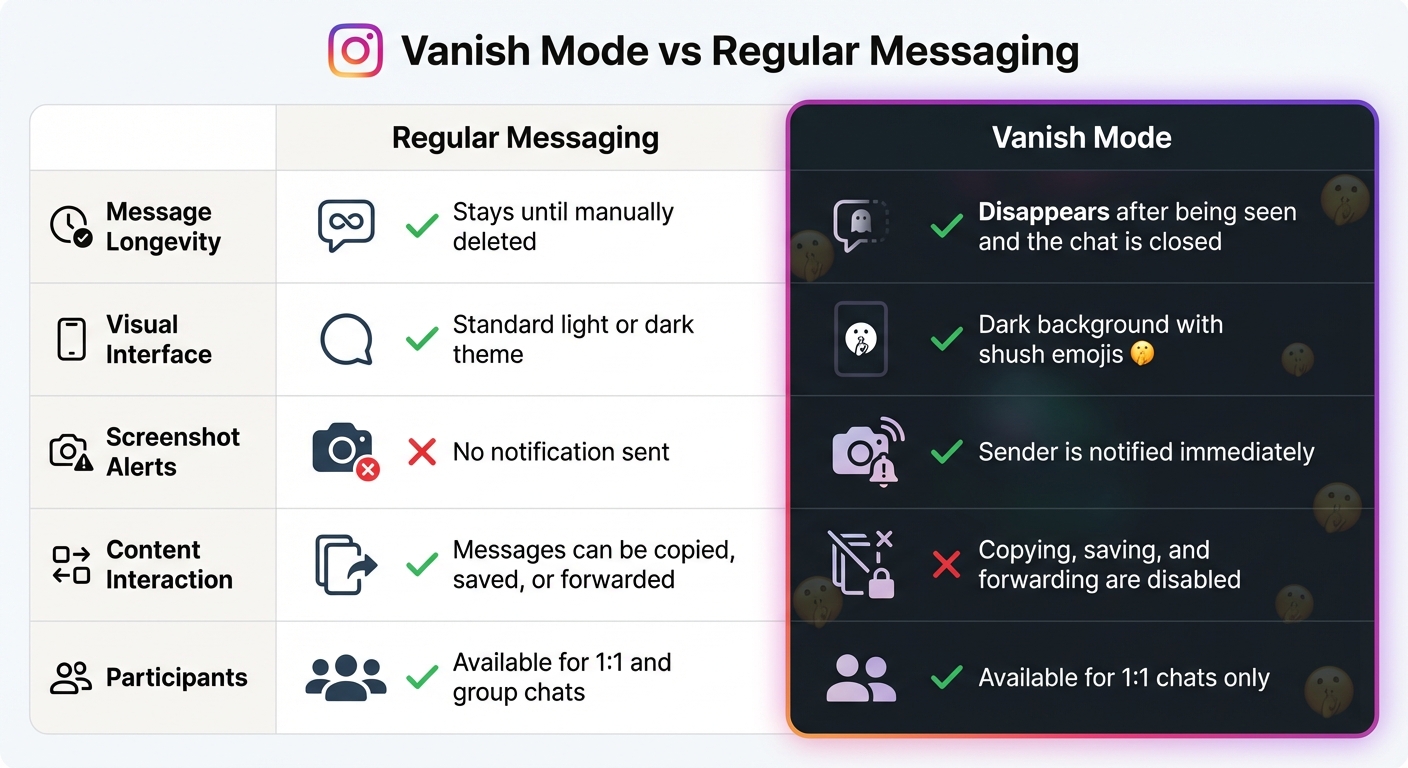
Instagram Vanish Mode vs Regular Messaging: Key Differences
Vanish Mode is Instagram's feature for temporary messaging, allowing users to send texts, photos, videos, and other content that automatically disappears. Unlike standard messages, which stay in your chat history until manually deleted, messages in Vanish Mode disappear after they’re viewed and the chat is closed.
This feature works exclusively in one-on-one direct messages - it’s not available in group chats. To activate it, simply swipe up from the bottom of an existing conversation. When Vanish Mode is on, the chat interface changes: the background turns dark, shush emojis (🤫) appear, and a banner stating "You're in Vanish Mode" is displayed at the top. Both participants in the conversation are notified whenever Vanish Mode is activated or deactivated.
Messages sent in Vanish Mode are gone for good once viewed - there’s no way to retrieve them. However, Instagram retains the data for up to 14 days behind the scenes to allow users to report inappropriate behavior if necessary. If someone takes a screenshot or screen recording while in Vanish Mode, Instagram immediately alerts the sender.
Now, let’s dive into why Instagram introduced this feature.
Why Instagram Created Vanish Mode
Instagram developed Vanish Mode to give users more control over their conversations by offering a way to send temporary messages. This feature is especially useful for situations where you want to share sensitive information, like a home address for a one-time meetup, or have casual chats without cluttering your inbox.
The feature is designed for private communication between trusted contacts. It’s only available on mobile devices and is limited to people who either follow each other on Instagram or are connected through Facebook Messenger. This restriction helps prevent unsolicited messages from strangers and ensures Vanish Mode is used within familiar connections.
Main Features of Vanish Mode
Vanish Mode supports all the usual types of Instagram direct messages, such as text, photos, videos, voice messages, stickers, and reactions. Here’s how it compares to regular messaging:
| Feature | Regular Messaging | Vanish Mode |
|---|---|---|
| Message Longevity | Stays until manually deleted | Disappears after being seen and the chat is closed |
| Visual Interface | Standard light or dark theme | Dark background with shush emojis |
| Screenshot Alerts | No notification sent | Sender is notified immediately |
| Content Interaction | Messages can be copied, saved, or forwarded | Copying, saving, and forwarding are disabled |
| Participants | Available for 1:1 and group chats | Available for 1:1 chats only |
To enhance privacy, Vanish Mode disables options like copying, saving, and forwarding messages. While Instagram does notify you if someone takes a screenshot, it can’t stop someone from using another device to photograph the screen. This makes it important to use the feature thoughtfully.
How to Turn On Vanish Mode on Instagram
Turning on Vanish Mode is simple and works on both iOS and Android devices. Keep in mind, though, that this feature is available only in the Instagram mobile app and works exclusively for one-on-one chats - group conversations are not supported. Before diving in, make sure your app is updated to the latest version.
There are two ways to activate Vanish Mode: a quick swipe gesture or through the chat settings. The swipe method is faster, while the settings option provides a bit more control. Either way, once activated, your chat background will turn black, and a "shush" emoji (🤫) will appear to confirm it's on.
Steps for iOS Users
- Open the Instagram app and tap the Messenger icon in the top-right corner of your screen.
- Select an existing one-on-one chat or start a new conversation with someone you follow.
- In the chat window, swipe up from the bottom of the screen. Keep swiping until you see "Release to turn on Vanish Mode", then let go.
- The screen will turn black, and "Vanish Mode" will appear at the top of the chat.
Alternatively, you can tap the person's name or profile picture at the top of the chat, go to Privacy & Safety, and toggle Vanish Mode. Both you and the other person will get a notification that Vanish Mode has been activated.
Steps for Android Users
The process for Android is nearly identical to iOS:
- Open the Instagram app and tap the chat icon in the top-right corner.
- Enter a one-on-one conversation.
- Swipe up from the bottom of the chat screen. Keep swiping until "Release to turn on Vanish Mode" appears, then release.
- The chat background will switch to black, and "Vanish Mode" will be displayed at the top.
You can also activate it by tapping the recipient's name or profile picture, selecting Privacy & Safety, and toggling Vanish Mode.
Once you’ve turned it on, you’ll be ready to explore how to disable Vanish Mode when needed.
How to Turn Off Vanish Mode Completely
Turning Off Vanish Mode in a Chat
Disabling Vanish Mode is just as straightforward as turning it on. You can choose between two methods: using a swipe gesture or navigating through the chat settings. The swipe option is faster, but if it doesn't work, the settings menu is a dependable alternative.
To switch off Vanish Mode with the swipe gesture, open the chat where it's active. You'll recognize Vanish Mode by the dark background. Simply swipe up until you see the prompt "Release to turn off Vanish Mode." Let go, and the chat will return to its regular appearance, notifying both participants.
If the swipe method isn't working, you can use the settings menu. Tap the recipient's name at the top of the chat, go to Privacy & Safety, and toggle off the Vanish Mode switch. This option works seamlessly on both iOS and Android devices, offering a more reliable way to exit Vanish Mode when gestures don't respond.
What Happens to Your Messages After Turning Off Vanish Mode
When you deactivate Vanish Mode, all messages sent while it was active are permanently erased and cannot be recovered. However, your previous chat history and any messages sent after turning off Vanish Mode will remain intact. Keep in mind that Instagram temporarily stores message data for reporting purposes.
Privacy Features and Limitations of Vanish Mode
Privacy Protections in Vanish Mode
Vanish Mode is designed to offer a more private messaging experience by automatically deleting messages, photos, videos, and reactions after they’ve been viewed and the chat is closed. This means there’s no lasting record of the conversation. Additionally, all chats in Vanish Mode are protected with end-to-end encryption, ensuring that only the participants can see the messages.
One important feature to note: if someone tries to take a screenshot of the chat, Instagram will notify you. However, this notification occurs after the screenshot is taken.
Instagram has also implemented safety measures to ensure Vanish Mode is used responsibly. It’s only available between mutual followers or Facebook Messenger connections. As Instagram explains:
"We designed Vanish Mode with safety and choice top of mind, so you are in control of your experience".
While these features provide a layer of privacy, it’s important to understand their limits.
What Vanish Mode Cannot Protect Against
Despite its privacy-focused design, Vanish Mode has several limitations. For instance, while Instagram alerts you when someone takes a screenshot, it doesn’t prevent the screenshot from being taken. Once captured, the image or video remains on the recipient’s device, and Instagram has no way to delete it.
Additionally, Vanish Mode can’t guard against someone using a second device to take a photo or video of the chat screen. This loophole means that even with all in-app restrictions, messages can still be saved externally without any notification.
Although Instagram blocks copying, forwarding, and saving messages directly within the app, these protections don’t extend beyond the app’s environment. Furthermore, messages sent in Vanish Mode are stored on Instagram’s servers for up to 14 days. This retention period allows users to report violations of community guidelines. After this time, the content is no longer accessible for reporting.
Lastly, Vanish Mode is only available for one-on-one chats. It doesn’t work in group conversations or on the web or desktop versions of Instagram.
When to Use Vanish Mode and Best Practices
Ideal Situations for Vanish Mode
Vanish Mode works best for casual, one-on-one conversations where keeping a permanent record isn’t necessary. Planning a surprise party? This feature is perfect for those quick, confidential exchanges that you don’t want lingering in your chat history.
It’s also a great option for brief, lighthearted chats or sharing spontaneous thoughts that don’t require follow-up. Once the chat ends, everything disappears, keeping your messages private and your inbox uncluttered. Plus, it minimizes the risk of unauthorized access since the chat is cleared when closed.
Keep in mind, Vanish Mode is only available for one-on-one conversations.
Staying Safe While Using Vanish Mode
Once you’ve decided to use Vanish Mode, follow some basic safety tips to ensure your information stays secure.
Only activate Vanish Mode with people you trust. While Instagram will notify you if someone takes a screenshot, it can’t stop someone from using another device to capture your chat. Technology experts also point out that these messages aren’t deleted immediately, even though they disappear from view eventually.
Avoid sharing sensitive details like passwords, banking information, or home addresses. If you encounter inappropriate messages, report them right away. Instagram retains messages for up to 14 days for review, but waiting too long could mean losing access to the evidence. Lastly, double-check for the dark screen and the shh emoji before sending any messages to confirm Vanish Mode is active.
Conclusion
Vanish Mode on Instagram gives you control over how long your messages stick around. Since it works on a per-chat basis, you can turn it off by swiping down in the chat or adjusting the settings under Privacy and Safety. Keep in mind, messages sent in this mode disappear permanently and can't be retrieved once they're gone .
This feature is perfect for light, temporary conversations where leaving a lasting record isn’t necessary. However, it’s best to use Vanish Mode with people you trust. While Instagram will notify you if someone takes a screenshot, it can’t stop them from using another device to capture your messages.
If you run into trouble switching it off, try updating your Instagram app, restarting your phone, or clearing the app cache if you’re on Android. Both you and the other person in the chat will be notified when Vanish Mode is disabled.
Whether you’re looking for quick, private chats or just want more control over your conversations, Instagram puts the power in your hands. It’s your messaging experience - tailor it to fit your needs.
FAQs
Can you use Vanish Mode in Instagram group chats?
No, Vanish Mode on Instagram is strictly limited to one-on-one direct messages. It’s not available for group chats, so if you’re part of a group conversation, you won’t see this feature as an option.
Does Instagram notify others if you take a screenshot in Vanish Mode?
Yes, if you take a screenshot while Vanish Mode is active on Instagram, the other person in the chat will be notified. This feature is meant to add an extra layer of privacy, making sure both participants are informed if any part of their conversation is captured.
What are the drawbacks of using Vanish Mode for private chats on Instagram?
Vanish Mode is handy for quick, temporary chats, but there are some things you should know before diving in. For starters, it’s only available on mobile devices - so if you’re using Instagram on a desktop or through a web browser, you’re out of luck. Also, you’ll have to turn it off separately for each conversation. Disabling it in one chat won’t automatically apply to others.
Another key point: messages sent in Vanish Mode are permanently deleted once the chat is closed. There’s no way to recover them later. While Instagram does alert you if someone takes a screenshot of your messages, it can’t prevent them from saving or sharing that screenshot elsewhere. So while Vanish Mode can add a layer of privacy, it’s not a completely secure option.


