
Recovering deleted Instagram messages in 2026 is possible, but it’s not guaranteed. Instagram doesn’t have a "Recently Deleted" folder for direct messages like it does for posts or stories. However, there are a few methods you can try:
- Instagram’s Data Download Tool: You can request a copy of your data via the "Export Your Information" feature. This may include archived messages but not permanently deleted or unsent ones.
- Android Notification History: If enabled, this feature can log Instagram message notifications, even if they’re later deleted or unsent.
- iOS Recovery Software: Tools like Dr.Fone or AnyMP4 iPhone Data Recovery can scan your device for recoverable message fragments, but timing is critical to avoid data being overwritten.
- Ask the Other Person: If the conversation still exists on their end, they can forward or screenshot it for you.
Prevention Tips: Regularly back up your data using Instagram’s export tool and link your account to Facebook for added security.
While there are options for recovering messages, success depends on factors like how the messages were deleted and how much time has passed. Prevention remains the best approach.
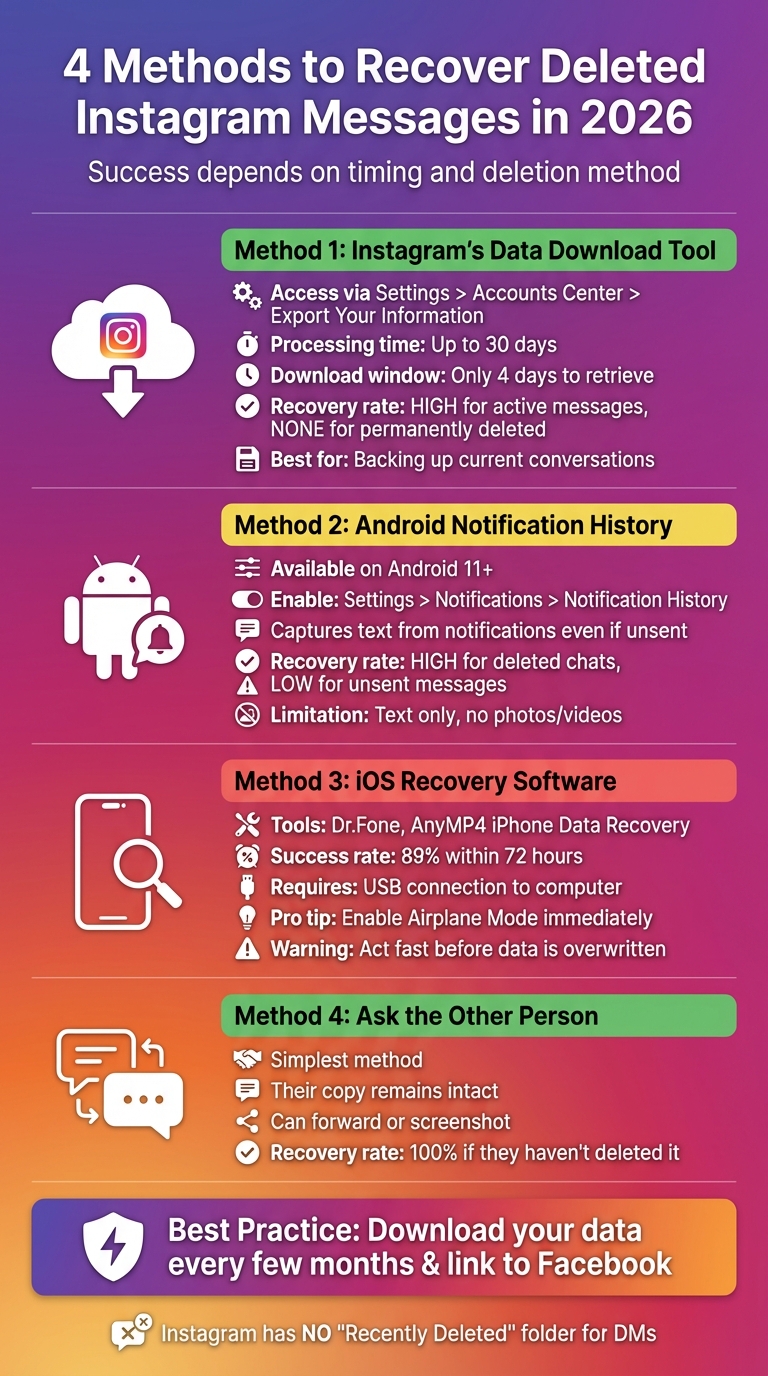
4 Methods to Recover Deleted Instagram Messages in 2026
How To Recover Deleted Messages On Instagram (Easy Tutorial)
Instagram's Official Data Recovery Features
Instagram offers a tool called "Export your information", available through the Meta Accounts Center, to help users download a copy of their Instagram data. This includes messages still available on the platform. However, it’s important to note that this tool is designed for data portability, not for restoring deleted messages.
The tool provides a file containing your profile details, activity, connections, and messages. You can tailor the export by selecting specific data types and choosing between two file formats: HTML for easy viewing or JSON for programmatic use. According to the Instagram Help Center:
"Some information you have deleted may be stored temporarily for safety and security purposes, but will not appear when you access or download your information."
Processing a request can take up to 30 days. Once the file is ready, you’ll receive a link, but it’s only available for 4 days - so act quickly.
How to Use Instagram's Data Download Tool
To access your Instagram data, go to Settings > Accounts Center > Your information and permissions > Export your information. After clicking Create export, choose your profile and select Export to device to save the file directly to your phone or computer.
If you’re only interested in conversations, check the "Messages" box. You can also narrow down the export by specifying a date range. Choose HTML for easier reading or JSON if you plan to process the data further. You’ll also need to select your media quality - low, medium, or high - and then tap Start export.
Before downloading, ensure your device has enough storage, especially if high-quality media is included, which can significantly increase file size. Once Meta processes your request, they’ll email you a download link. Remember, you only have 4 days to retrieve the file from the "Available downloads" section in the Accounts Center.
While this tool is helpful for backing up active content, it’s not a solution for retrieving permanently deleted material, as outlined in the limitations below.
What Instagram's Data Recovery Cannot Do
The data recovery tool has several restrictions. It does not recover permanently deleted messages or conversations where the sender unsent their messages. Additionally, it excludes content shared by others, such as tagged photos, as well as sensitive details like passwords or government-issued IDs.
| Data Type | Recoverable? | Notes |
|---|---|---|
| Active Direct Messages | Yes | Only messages still available on the platform |
| Deleted Messages | No | Permanently removed from exports |
| Unsent Messages | No | Irretrievable once removed by the sender |
| Tagged Photos | No | Only includes your own shared content |
| AI Chat History | Yes | Provided it hasn’t been deleted |
If your Instagram account is linked to Threads, you can also export Threads messages using this tool, but only if those messages haven’t been deleted. Once an account is deleted, all posts and information are permanently erased and cannot be recovered.
Ultimately, the Export your information tool is great for creating backups of your current data, but it won’t help you recover anything that’s already been permanently removed.
Other Ways to Recover Deleted Messages
If Instagram's official recovery tool doesn't work for you, there are other methods you can try. These approaches leverage your device's local storage and system features to recover message fragments that haven’t yet been overwritten.
Recovering Messages Through Android Notification History
If you’re using an Android device with version 11 or later, you’re in luck. These devices include a Notification History feature that keeps a log of all notifications. When an Instagram message notification pops up, the system records its text - even if the sender unsends it or you delete the conversation later. This makes it a handy tool for retrieving messages that might otherwise seem lost.
To enable this feature, open your device’s Settings app and go to Notifications. On Samsung devices, navigate to Advanced Settings > Notification History. Turn the toggle to On. Once activated, you can scroll through dismissed notifications and tap the Instagram icon to see a timestamped list of received messages.
A few things to note:
- Notification History only captures text. If the notification involved a photo or video, you’ll see a placeholder like “someone sent a photo.”
- This feature only logs received messages; anything you send won’t appear.
- If you suspect messages are missing, switch on Airplane Mode immediately to prevent new data from overwriting stored fragments.
Recovery chances:
- Deleted Chats: High recovery likelihood via data export.
- Unsent Messages: Low recovery likelihood, as these are typically removed from active databases.
For iOS users, third-party tools offer similar recovery options.
Using Recovery Software on iOS Devices
When it comes to iOS, speed is key. Deleted data on iPhones can be overwritten quickly, so acting fast improves your chances of recovery. Tools like AnyMP4 iPhone Data Recovery (rated 4.9/5 by 527 users) or Dr.Fone can scan your device for deleted messages. These programs search unallocated storage - the hidden space where deleted content lingers until it’s overwritten. To use them, you’ll need to connect your iPhone to a Windows or Mac computer via USB.
Timing is crucial. These tools claim an 89% success rate if you scan within 72 hours of deletion. Beyond that, routine activities like downloading apps or photos may overwrite the data. To maximize your chances:
- Immediately enable Airplane Mode to stop new data from being written.
- Avoid offloading the Instagram app or clearing its cache, as these actions can permanently erase local message fragments.
Most recovery software operates on a freemium model: you can scan and preview recoverable messages for free, but exporting them usually requires purchasing a license. These tools typically offer three recovery modes - direct device scan, iTunes backup recovery, and iCloud backup recovery. Always use the free preview feature first to confirm if your messages are recoverable before paying for a license.
A word of caution: scanning deep storage can expose security risks. Never enter your Instagram password on any third-party website. Legitimate recovery software works locally on your device and doesn’t require your credentials. Stick to reputable tools that perform scans directly on your computer rather than uploading your data to external servers.
How to Protect Your Instagram Messages from Loss
Since Instagram offers limited options for recovering deleted messages, taking proactive steps to back up your conversations is crucial. The key to avoiding the loss of important chats is to develop a habit of backing up your data. Here are two simple ways to secure your Instagram messages.
Link Your Instagram Account to Facebook
By linking your Instagram and Facebook accounts through the Meta Accounts Center, you can simplify data management and create a safety net for your messages. To do this, go to Settings and select Accounts Center. Once your accounts are linked, you can make a "Create export" request to back up both profiles. Additionally, this connection enables the "Transfer your information" feature, which lets you move copies of your data to external services for added security.
Download Your Instagram Data Regularly
Another effective way to protect your messages is to download your Instagram data periodically. Doing this every few months ensures you have a local backup of your chats, photos, and other content, independent of Instagram's servers. To download your data, follow these steps: tap your Profile icon, go to Menu, select Your Activity, and choose Download Your Information. Opt for "Some of Your Information" and focus on "Messages" to make the process quicker and save storage space.
For file format options, select HTML if you'd like to view your messages easily in a web browser, or go with JSON if you need the data for other software. To stay on top of new messages, enable email notifications for DMs by navigating to Settings > Notifications > Email Notifications. As Maryam Haq from ContentStudio points out:
"Instagram doesn't store your deleted messages indefinitely. Once they're gone from the app, they're pretty much gone from Instagram's servers too."
Conclusion
Recovering deleted Instagram messages in 2026 is possible in some cases, but there's no guarantee it will work. Whether recovery is successful depends on factors like how the messages were deleted, how much time has passed, and any preventive measures you’ve taken. For instance, if you simply removed a conversation from your view, Instagram’s data download tool might help you retrieve it within 24 to 48 hours. On the other hand, messages unsent or sent in Vanish Mode are erased almost instantly, leaving little to no chance for recovery.
Aside from Instagram’s tools, your device may offer other recovery options. Android users can utilize Notification History to capture incoming messages, while iOS users might need specialized recovery software to scan their storage. However, timing is critical - once new data overwrites the deleted fragments, recovery becomes unlikely. Another simple option? Ask the other person in the conversation to forward the message or share a screenshot, as their copy remains intact even if you delete yours.
Ultimately, prevention is key since Instagram doesn’t have a "Recently Deleted" folder for direct messages. Regular backups and linking your Instagram account to Facebook can help safeguard your chats. Maryam Haq sums it up perfectly:
"Prevention is better than cure... Set a calendar reminder and treat it like digital spring cleaning".
FAQs
Is it possible to recover deleted Instagram messages using the Data Download tool?
If you're looking to recover deleted messages on Instagram, the Data Download tool might be your best bet - but there's a catch. This tool typically allows you to retrieve messages only from the last 24 hours. It provides a copy of your account data, including messages, as long as they fall within this short recovery window.
After this time frame, retrieving those messages becomes unlikely. To prevent losing important conversations down the line, it’s a good idea to back up your chats or save screenshots of critical exchanges.
How can I make sure I don’t lose important Instagram messages?
To keep your Instagram messages safe and prevent losing them, try these tips:
- Download your Instagram data: Head to Settings → Security → Download Data in the app. This lets you request and save a backup of your messages along with other activity.
- Back up your device: Use tools like iCloud or Google Drive to regularly back up your phone. These backups may include Instagram’s local cache, which could help recover deleted messages.
- Save important messages: Take screenshots of crucial conversations or use Instagram’s "Save" feature to bookmark key messages, so you have a copy even if the original gets deleted.
- Secure your account: Turn on two-factor authentication to protect your account and messages from unauthorized access.
Using these methods together can help you safeguard your Instagram DMs and avoid losing important conversations.
Can Android's Notification History help recover deleted Instagram messages?
Android's Notification History feature can come in handy for recovering deleted Instagram messages in specific situations. When enabled, this feature keeps a record of your notifications, including previews of Instagram direct messages. So, if a message gets deleted, you might still be able to view its content by checking the Notification History.
However, this approach only works if the message appeared in the notification before it was deleted, and if Notification History was already activated on your device. It’s a straightforward way to access deleted messages without relying on third-party tools.


