
If Instagram feels slow, crashes, or struggles to load content, clearing its cache can fix these issues. The cache stores temporary files like images and videos to speed up the app, but over time, it can grow too large or become corrupted, causing performance problems. Clearing the cache removes these files without affecting your account or posts.
Quick Steps:
- iPhone: Use "Offload App" in Settings to clear the cache while keeping login info, or delete and reinstall the app for a full reset.
- Android: Go to Settings > Apps > Instagram > Storage > Clear Cache to remove temporary files without logging out.
Clearing the cache frees up space, resolves glitches, and improves app performance. For web users, clearing your browser's cache can also help. Regular maintenance, like clearing the cache every 1–2 months, ensures Instagram runs smoothly.
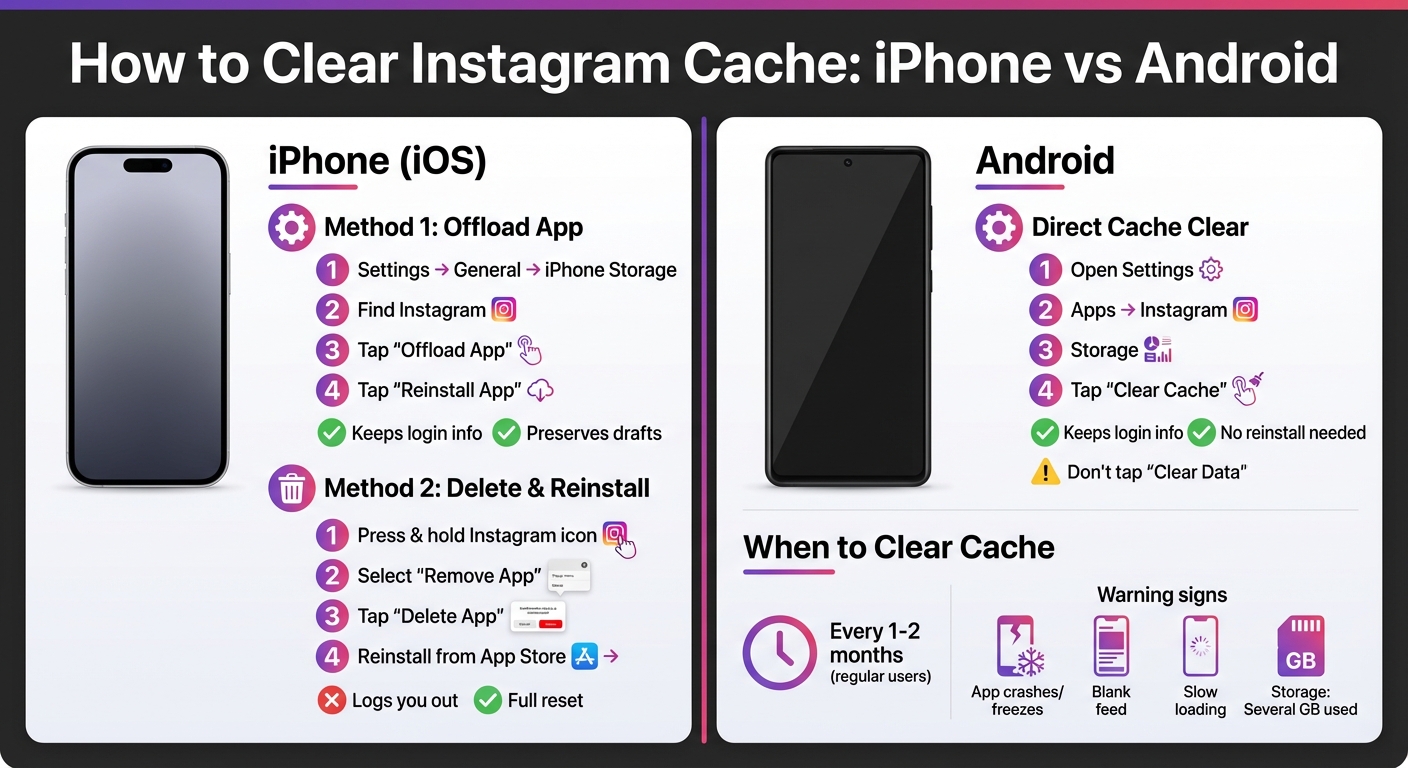
How to Clear Instagram Cache on iPhone vs Android: Step-by-Step Comparison
What Instagram Cache Is and Why It Matters
What Cache Means
Instagram uses a cache to store temporary files like high-resolution images, videos, search history, and profile data. This helps the app avoid downloading the same content repeatedly every time you open it. Tara Schatz from MacPaw explains it well:
"A cache is a collection of files that are stored so that they don't have to be re-downloaded every single time a user visits a certain site or opens an app."
By saving these elements locally, Instagram can load faster, conserve data, and ensure content appears almost instantly. But as the cache grows too large, it can start to work against you, slowing down the app instead of speeding it up.
How Cache Slows Down Instagram
Over time, the cache can swell significantly due to Instagram's high-resolution photos and videos, sometimes growing from a few megabytes to several gigabytes. Worse, the cache can become outdated or corrupted, leading to performance issues. Akash Deep from ExpressVPN highlights this problem:
"When that cached data becomes outdated or corrupted, it can cause problems such as freezing, slow loading, blank feeds, or repeated posts."
This can result in issues like feeds that won’t refresh, Stories that freeze, or even app crashes. On top of that, app updates can clash with older cached files, causing Instagram to slow down as it struggles to process the bloated temporary data.
How To Clear Instagram Cache On iPhone (Fast & Easy)
How to Clear Instagram Cache on iPhone
If you're using an iPhone, you might notice that there's no straightforward "clear cache" option for Instagram. Instead, you’ll need to use one of two methods: offloading the app or deleting and reinstalling it. Both approaches remove temporary files, but your choice depends on whether you want to keep your login information intact.
Method 1: Offload the Instagram App
Offloading is a handy option that clears temporary files while keeping your login details saved. Here’s how to do it:
- Open Settings on your iPhone and go to General > iPhone Storage.
- Scroll down to find Instagram and tap on it.
- On the Instagram storage screen, tap Offload App. Confirm by tapping Offload App again.
- Once the process is complete, tap Reinstall App on the same screen to download a fresh copy.
As Luqman from iGeeksBlog explains:
"When you reinstall the offloaded app, the cache files are cleared, and the app starts building the cache from scratch."
This method is perfect if you want to free up space without losing login credentials or Reels drafts. It refreshes the app’s cache while keeping your account data intact.
Method 2: Delete and Reinstall Instagram
If you’re dealing with persistent glitches or lag, deleting and reinstalling Instagram is the most thorough way to clear the cache. Keep in mind that this method will log you out, so make sure you have your login details handy.
Here’s how to delete the app:
- From your Home Screen, locate the Instagram icon, press and hold it, and select Remove App (or tap the minus "-" sign). Then, tap Delete App and confirm by selecting Delete again.
- Alternatively, go to Settings > General > iPhone Storage > Instagram > Delete App.
After deleting, reinstall Instagram by opening the App Store, searching for "Instagram", and tapping the cloud icon or Get button.
As Tara Schatz from MacPaw points out:
"Clearing the cache on Instagram will log you out of the device and remove your search history. You will have to log back in when you reinstall the app."
Rest assured, your posts, messages, and saved content are safe since they’re stored on Instagram’s servers, not your device. This method ensures a fully refreshed app experience without affecting your core account data.
Next, we’ll explore how to clear Instagram’s cache on Android devices using similarly straightforward steps.
How to Clear Instagram Cache on Android
If you're using an Android device, you can clear Instagram's cache without uninstalling the app or losing your login details. The process is quick and can be done directly through your device's Settings.
Steps to Clear Cache on Android
- Open the Settings app on your Android device.
- Navigate to Apps, Apps & notifications, or App management (the exact name depends on your device).
- Scroll through your apps and select Instagram.
- Tap on Storage, Storage & cache, or Storage usage.
- Hit the Clear cache button.
Once you tap Clear cache, the button may turn gray, or the cache size will reset to 0 bytes. This action clears temporary files stored locally on your device while leaving your account data and app settings untouched.
Important: Avoid selecting Clear data, as this will reset the app, log you out, and delete any saved drafts or preferences.
If you're using a Samsung Galaxy device, the steps might differ slightly. You may need to go through Battery and device care > Storage > Apps > Instagram > Clear cache. For Huawei devices, you can often use the Optimizer app's Cleanup tool to achieve the same result. If you're having trouble finding the right menu, try using the search bar in your Settings app and type "Instagram" to locate the app's settings directly.
What Happens After You Clear Cache
When you clear Instagram's cache, temporary data like thumbnails, search history, and other cached files are removed. This process won’t log you out of your account or delete any essential data. However, the app might take a little longer to load content the next time you open it, as it rebuilds the temporary files in the background.
How to Clear Instagram Cache in Web Browsers
Unlike the app, Instagram's web version doesn't have a built-in option to clear its cache. However, you can tackle this by clearing your browser's cache. This removes temporary files like images, search history, and other stored data, which can help free up space and resolve issues like lag or freezing.
Important: If you clear cached images and files, your login details will remain intact. However, clearing cookies will log you out, requiring you to sign back in.
Steps for Different Browsers
The process for clearing Instagram's cached data varies slightly depending on your browser. Here's how to do it on some of the most popular ones:
- Google Chrome: Open the three-dot menu, go to Settings, then Privacy and security, and click Clear browsing data. Check Cached images and files, then hit Delete data.
- Apple Safari (macOS): Safari lets you remove Instagram-specific data without erasing your entire browsing history. Click the Safari menu, then Settings > Privacy > Manage Website Data. Search for "Instagram", select it, and click Remove.
- Mozilla Firefox: Open the menu (three horizontal lines), select Settings, then Privacy & Security. Under Cookies and Site Data, click Clear Data, ensure Cached Web Content is checked, and press Clear.
- Microsoft Edge: Click the three-dot menu, go to Settings, then Privacy, search, and services. Under Clear browsing data now, select Choose what to clear, pick a time range, check Cached images and files, and click Clear now.
Once you've cleared the cache, Instagram might take slightly longer to load at first as it rebuilds its temporary files. However, your account data and settings will remain unaffected.
When to Clear Your Instagram Cache
How often you should clear your Instagram cache depends on how you use the app. For most users, clearing it every 1–2 months is enough. However, if you're a heavy user, you might need to do it every few weeks. Below, we’ll cover the key signs that it’s time to give your cache a reset.
Signs It’s Time to Clear Your Cache
Your Instagram app might be trying to tell you it needs a cleanup. Here are some clear indicators:
- The app crashes or freezes frequently.
- Your feed doesn’t refresh or loads as a blank screen.
- You notice repeated posts or slow-loading media.
- Reels buffer endlessly, or the app feels sluggish overall.
- Instagram is taking up several gigabytes of storage.
- You’re experiencing login problems or issues uploading content.
Tips to Boost Instagram’s Performance
Clearing your cache isn’t the only way to improve Instagram’s performance. You can tweak a few settings and habits to keep things running smoothly:
- Enable "Data Saver" mode: Go to Account > Cellular Data Use to reduce how much media auto-loads, which slows down cache buildup.
- Clean up your app: Delete old Story drafts, unused highlights, and clear your recent searches to free up space.
- Update the app: Make sure you’re running the latest version to avoid bugs and glitches.
- Restart your device: A quick reboot can refresh your system memory.
- Adjust storage settings: Turn off "Save to Camera Roll" and "Save to Archive" under the Archiving and Downloading settings to limit local storage use.
If Instagram still feels slow after trying these steps, it’s probably time to clear the cache again using the method outlined earlier.
Conclusion
Clearing your Instagram cache is a quick and effective way to tackle lag and improve app performance. Whether you're using your device's settings or clearing cached website data in a browser, both methods help get rid of outdated temporary files.
"Clearing the cache helps free up storage, fix app glitches, and speed up performance by removing outdated or corrupted temporary files." – Private Internet Access
FAQs
Why does Instagram cache slow down the app?
Instagram relies on a cache to store images, videos, and other data temporarily. This feature helps the app load content more quickly. However, as time goes on, the cached data can accumulate, occupying valuable storage space. This buildup might lead to the app running slower, lagging, or even crashing. By clearing the cache, you can free up storage and boost the app's performance, particularly if it has started to feel sluggish.
Are there any downsides to clearing Instagram's cache?
Clearing Instagram’s cache is a safe process and won’t erase your photos, messages, or account details. That said, there are a few things to keep in mind. If you’re using an Android device, clearing the cache won’t log you out of your account. However, on an iPhone, you’ll need to either offload or reinstall the app, which will log you out. This means you’ll have to log back in, which can be a hassle if you rely on two-factor authentication or don’t have your password readily available.
When you clear the cache, temporary files like saved thumbnails and recent searches are removed. While this helps free up storage space, it also means that the app will need to re-download these files the next time you use it. This could lead to a brief slowdown and slightly increased data usage. Other than these minor inconveniences, clearing Instagram’s cache doesn’t pose any lasting issues.
How often should I clear my Instagram cache to keep the app running smoothly?
If Instagram starts feeling slow, unresponsive, or laggy, it’s a good idea to clear the app’s cache. There’s no set rule for how often to do this, but if you’re a frequent Instagram user, clearing the cache periodically can help keep things running smoothly.
Running low on storage? Clearing the cache can also free up space on your device, which might improve its overall performance. Pay attention to how the app behaves to know when it’s time for a quick cleanup.


