
Your Instagram holds years of photos, videos, and memories. But if your account gets hacked, suspended, or deleted, all that data could disappear. Downloading your Instagram profile archive ensures you have a backup of everything important. Here's how you can do it:
Key Steps:
-
Request Your Archive:
- Go to Settings → Accounts Center → Export Your Information.
- Choose your profile, data categories (e.g., posts, messages), file format (HTML or JSON), and media quality.
- Submit your request and confirm your password.
-
Wait for Processing:
- Processing time depends on your account size (from 30 minutes to 48 hours).
- You'll get a download link via email and in-app notification (expires in 4 days).
-
Download and Save:
- Use Wi-Fi for large files (up to 2.5GB).
- Save the archive to your device or directly to cloud storage like Google Drive.
What's Included:
- Media: Photos, videos, Reels, Stories, and Highlights.
- Account Info: Bio, email, followers, and search history.
- Interactions: Messages, comments, and likes.
Pro Tips:
- Keep your email updated to receive the download link.
- Free up at least 5GB of storage for large accounts.
- Organize your files systematically for easy access.
Regularly backing up your Instagram ensures your memories and content stay safe, no matter what happens to your account.
How to Download All Your Instagram Data (Photos, Videos, Messages & More)
sbb-itb-3b12fba
Preparing Your Account and Device Before You Download
Before you hit that Request Download button, taking a few simple steps can help you avoid hiccups. Instagram sends your archive link via email, and it’s only active for 4 days. If your email is outdated or your inbox is a mess, you could miss the notification. By following these tips, you’ll set yourself up for a smooth experience.
Check Your Account Credentials and Security Settings
Start by double-checking your account settings. Confirm that your email address is up to date in the Meta Accounts Center and turn on two-factor authentication (2FA) for extra security during the export process.
While you’re at it, review third-party app permissions. Navigate to Settings → Security → Apps and Websites and remove access for apps you don’t use or don’t recognize.
"Deleting or deactivating an Instagram account without backing it up first is one of the most common digital regrets." - Maya Chen, Content & Tech Writer, GrabReels
Check Your Storage Space and Internet Connection
If your account includes lots of videos, your archive file could be pretty large. Make sure you have at least 5GB of free space on your device to handle both the ZIP file and its extraction.
Use Wi-Fi for the download. Mobile data connections can be unreliable, and a dropped connection could corrupt the ZIP file, forcing you to start over. If you’re tight on storage space, consider saving the archive directly to a cloud service like Google Drive or Dropbox instead of your local device.
Tips for Managing Multiple Account Archives
Managing multiple Instagram accounts? A little organization upfront can save you a lot of frustration later. Create a consistent folder structure, like /brand/campaign/year/month/, so you always know where each archive belongs. For file names, try a format like DATE_HANDLE_CAMPAIGN - for instance, 20260518_brandname_spring - to make your files easy to find.
Before you start each download, jot down the current follower and following counts for the account. This data isn’t part of the archive but can be helpful when reviewing your files later. To avoid delays, stagger your export requests. Instagram’s processing time can range from 30 minutes to 48 hours, and juggling multiple email notifications at once can quickly become overwhelming. These steps will help you stay on top of your data before you begin the download process.
How to Export Your Instagram Profile Archive: Step-by-Step
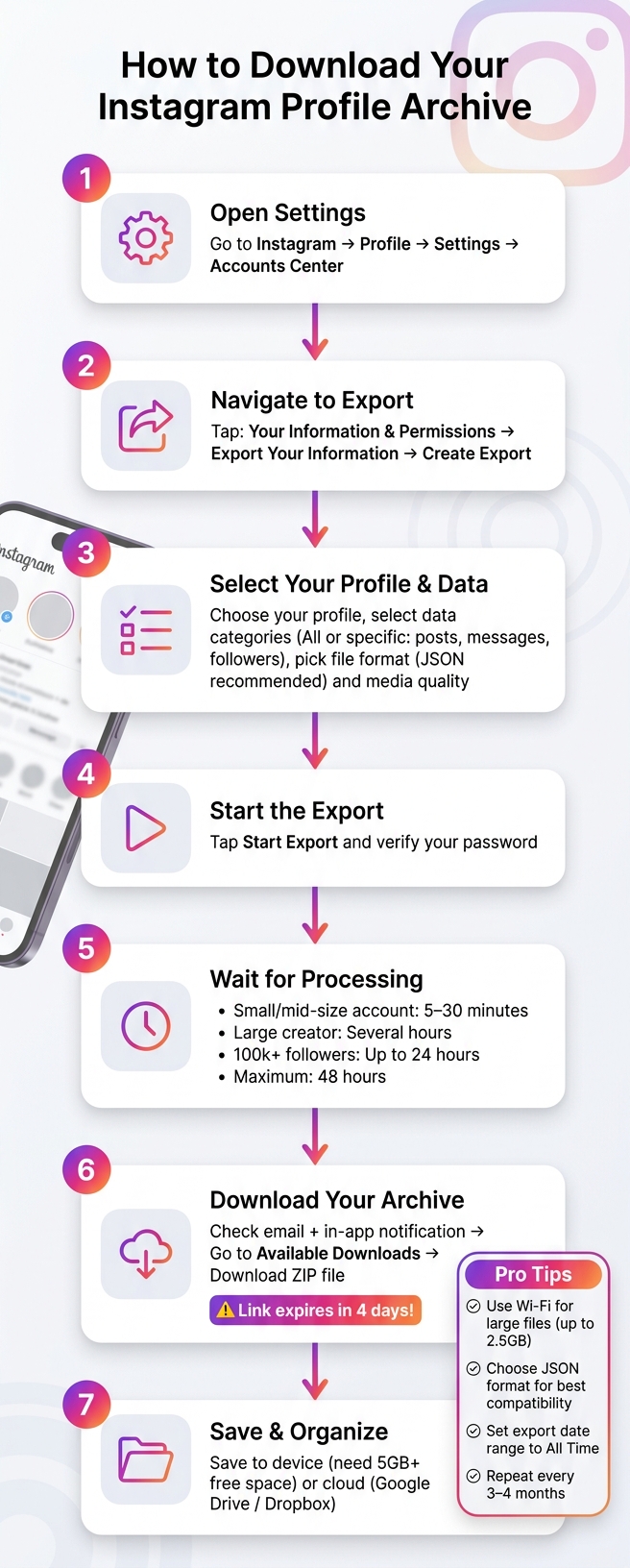
How to Download Your Instagram Profile Archive: Step-by-Step Guide
Ready to save your Instagram profile archive? Whether you're using your phone or desktop, Instagram handles export requests through the Meta Accounts Center. Here's how to get started.
How to Export Your Archive Using the Instagram App
If you're on a mobile device, follow these steps:
- Open Instagram and tap your profile picture. Then, go to Settings and tap Accounts Center at the top.
- Choose Your information and permissions, then tap Export your information.
- Tap Create export and select the profile you'd like to archive.
- Decide where to save your archive: Export to device for a local ZIP file, or Export to external service to send it to a third-party provider.
- Pick the data categories you want to include: either "All information" or specific types like media, messages, or followers.
- Choose your file format. Use HTML to browse in a web browser, or JSON if you need the data for other tools.
- Select the media quality. High quality is ideal for creators, though it increases file size.
- Finally, tap Start export and verify your password when prompted.
How to Download Your Archive on a Web Browser
For larger archives, it's often easier to use a web browser since files save directly to your computer. Here's how:
- Log into your account at instagram.com.
- Click More in the bottom-left corner (or your profile picture) and go to Settings.
- Navigate to Accounts Center → Your information and permissions → Export your information → Create export.
- Customize your export by selecting data categories, file format, date range, and media quality.
- Click Start export and confirm your password to submit the request.
Pro tip: If your account includes years of video content, the web browser option is better for handling large, multi-gigabyte files.
Once your archive is downloaded, take some time to organize and store it securely.
How Long It Takes and How You'll Be Notified
The time it takes to process your request depends on the size of your account and server load. Here's a general breakdown:
| Account Type | Typical Processing Time |
|---|---|
| Small to mid-size | 5–30 minutes |
| Large creator | Several hours |
| Very large (100k+ followers) | Up to 24 hours |
| Official maximum estimate | 48 hours |
When your archive is ready, Instagram will notify you via email and an in-app alert. To download your file, go to Accounts Center → Your information and permissions → Export your information → Available downloads. Keep in mind, you only have 4 days to download the file before the link expires. If you miss the window, you'll need to start the process again . And if you don't see the email, check your spam or junk folder.
How to Organize and Store Your Downloaded Archive
How the Archive Folder Is Organized
Once you've downloaded your Instagram archive, the first step is to organize it for easy access and storage. After unzipping the file, you'll notice that Instagram has automatically sorted your data into folders based on content type. These folders typically include categories like photos, videos, Reels, Stories, messages, comments, and profile details. Inside, you'll find either media files or metadata files, depending on the format you selected - HTML for browsing content like a website or JSON for data processing or importing into other tools. This pre-organization serves as a helpful starting point for managing your data efficiently.
However, the default folder setup can be tricky to navigate. File names are often long and generic, which can make finding specific items more time-consuming. Spending some time manually organizing your archive can save you headaches later.
Here’s an example of a more user-friendly folder structure:
| Folder Level | Example |
|---|---|
| Root | Instagram_Archive_2026 |
| Year | 2025, 2026 |
| Month | 01_January, 06_June |
| Content Type | Feed_Posts, Reels, Stories, Metadata |
Keep in mind that Instagram’s export files, as of February 2026, do not include engagement metrics like likes, views, or comment counts for posts and Reels. If these stats are important for your records, you might want to save them in a spreadsheet before exporting your archive.
Once you've organized your files, the next step is to ensure they’re securely stored for the long haul.
How to Store Your Archive for the Long Term
A solid backup strategy is key to protecting your archive. The 3-2-1 backup rule is a reliable approach: maintain 3 copies of your data, store them on 2 different types of media, and keep 1 copy in an off-site location. Pairing an external hard drive with a cloud storage service is a practical way to meet these criteria. Instagram even offers a "Transfer to destination" tool, which allows you to send your archive directly to Google Drive or Dropbox without saving it locally first - perfect if you're short on device storage.
"Treating backups as insurance - something you hope never to need but are grateful to have - is the mark of a professional creator." - SSDown Blog
To keep your archive current, set a reminder to perform a full backup every 3–4 months. Using a standardized naming format like YYYY-MM-DD_AccountName_Archive will help you stay organized as your archive grows.
How to Put Your Archived Content to Work
Your archive isn’t just for safekeeping - it can also be a powerful tool for shaping your content strategy. Repurpose older, high-performing posts that still resonate with current trends or campaigns. Additionally, the historical data in your archive can help you identify engagement patterns that might not be evident in your day-to-day analytics.
Since engagement metrics are excluded from the export, consider maintaining a separate record of your best-performing posts. By combining this performance data with your archived media, you’ll have everything you need to refine your future content strategies effectively.
Using Outfame to Grow and Optimize After Downloading Your Archive
How to Use Your Archive Data Inside Outfame
Once your archive is backed up and well-organized, it becomes a goldmine for smarter growth strategies. Outfame takes your historical data and turns it into actionable insights for Instagram and TikTok.
Always export your archive in JSON format, not HTML. As TheUnfollower explains, "JSON format specifically... is the most stable and provides the most accurate data for our analyzer". JSON files not only load faster into Outfame’s tools but also produce more reliable insights. Be sure to set your export date range to "All Time" so the AI can analyze your complete posting history.
Outfame analyzes key metrics from your public posts - like likes, comments, shares, and post timing - to uncover audience trends and engagement patterns you might have overlooked. This data helps refine your posting schedule and improve audience targeting, all based on what has worked in the past rather than relying on guesswork. The result? A more focused and effective content strategy.
Finding High-Performing Content with Outfame's Tools
Outfame Analytics provides detailed reports that showcase which content themes, formats, and posting times have driven the most engagement over time. You can even filter Reels by engagement to find your top-performing videos, making it easier to decide what to repost or adapt.
Analytics data retention depends on your plan:
| Plan | Analytics Data Retention |
|---|---|
| Free | 7 days |
| Pro | 90 days |
| Business | Unlimited |
To keep your strategy fresh, it’s a good idea to export a new archive every month. This ensures Outfame is always working with your most recent performance data rather than relying on outdated snapshots. These insights not only shape your content strategy but also strengthen your overall profile management, helping you make the most of your Instagram archive.
Staying Compliant While Reusing Your Content
As you analyze and reuse your content, staying compliant is key. Outfame relies exclusively on official Instagram and Meta APIs to access public post data, ensuring your account's privacy and security.
"We do not access private messages, private accounts, or any non-public data without explicit authorization through official APIs." - Outfame Analytics, Inc.
When repurposing archived content, make sure to use media you own or have explicit rights to. Ethan Campbell of INSSIST notes, "Exporting publicly available profile data for personal use, research, or business analysis is generally permissible". However, this doesn’t give you the right to redistribute or monetize third-party music, licensed images, or collaborator posts without proper permissions. Outfame ensures data security through TLS/SSL encryption in transit and encryption at rest, so your information is protected every step of the way.
Conclusion: Back Up, Organize, and Plan for Growth
Your Instagram archive isn't just a backup - it's a powerful tool for smarter content planning, account security, and sustained growth. By sticking to Instagram's official export process, you ensure your data is both secure and complete. Start the export through Instagram's settings, choose the JSON format, and make sure to download the file within the 4-day window before the link expires. Once saved, this archive becomes a foundation for strategic decisions.
Keep your archive safe by storing it on both a secure cloud service and an external drive. To stay current, set a calendar reminder to repeat this process every 3–4 months, ensuring your backup always includes the latest content and activity. These regular updates not only protect your account history but also provide consistent insights to refine your content approach.
Your archive is also a goldmine for repurposing past successes. Use data from previous Reels, captions, and posts to identify what worked, and integrate those insights into tools like Outfame. This way, your next content cycle is based on actual performance metrics rather than guesswork.
Think of your archive as a professional asset - it’s not just about storage. Back it up, organize it, and let it guide your growth.
FAQs
What should I do if my Instagram archive link expires before I download it?
If the link to your Instagram archive expires, don’t worry - you can easily request a new one. Simply head to your profile, go to Settings, then navigate to Privacy & Security > Data Download, and submit another request. Instagram will send you an email with a new link to download your full profile data, which includes your posts, stories, and account details.
How can I open and search my archive if I downloaded it in JSON format?
To access and explore your Instagram archive in JSON format, you'll need a tool or text editor that supports JSON files, such as Visual Studio Code or Sublime Text. Once opened, use the search function (Ctrl+F on Windows or Cmd+F on Mac) to locate specific details, like posts or follower information. If you prefer an easier-to-navigate interface, try uploading the files to a specialized tool built for viewing Instagram data.
How do I back up my Instagram archive so it’s safe if my phone or laptop fails?
To safeguard your Instagram archive, you can use Instagram's built-in data download tool. This allows you to save posts, stories, messages, and account details in a few simple steps.
How to Download Your Instagram Data:
- Open your profile and navigate to Settings.
- Select the option labeled Download your information.
- Choose the type of data you'd like to include and the preferred format (e.g., HTML).
- Tap Create file to initiate the process.
Once the archive is ready, download it and store it in a secure location, like a cloud storage service or an external drive, to ensure it's safe and accessible.


