
If you’re looking to unlink your Facebook and Instagram accounts, the process is simple and can be completed in just a few minutes. Disconnecting these accounts stops automatic sharing of posts, stories, and reels between the platforms, giving you more control over your content and privacy. Here's what you need to know:
- Why unlink? It prevents data syncing, stops cross-posting, and ensures changes on one profile (like name or profile picture updates) don’t carry over to the other.
- Where to start? Use the Accounts Center, accessible from both Instagram and Facebook apps or desktop.
- Steps to unlink: Head to the Accounts Center, locate the linked account, and remove it. Make sure to set a standalone Instagram password if needed.
- Troubleshooting tips: Update your apps, clear cache, or switch to desktop if you encounter issues.
This quick guide will walk you through the exact steps for mobile and desktop, along with tips to avoid common problems.
How to Unlink Instagram From Facebook Account (2025 UPDATE)
Finding the Accounts Center
The Accounts Center is your go-to hub for managing connections between Facebook, Instagram, and other Meta platforms. If you're looking to unlink accounts, this is where you'll start. The best part? You can access it through both the Instagram and Facebook mobile apps, though the steps to get there vary slightly.
Quick Tip: You need at least two linked Meta accounts for the Accounts Center to show up.
Accessing Accounts Center on Instagram
Using the Instagram mobile app? Here's how to find it:
- Tap the profile icon in the bottom-right corner.
- Hit the Menu icon (three horizontal lines) in the top-right corner.
- Scroll through the menu and select Accounts Center.
This will take you straight to the central hub where all your linked Meta accounts are displayed.
Accessing Accounts Center on Facebook
On the Facebook mobile app, the path is a bit different:
- Tap your profile image or the Menu icon at the top of the screen.
- For Android users, select the Settings gear icon.
- If you're on iOS, go to Settings & Privacy, then tap Settings.
From there, choose Accounts Center, and you'll arrive at the same management page. Here, you can view all connected accounts and make changes to how they interact. Once you're in the Accounts Center, you're ready to start unlinking your accounts.
How to Unlink Your Accounts
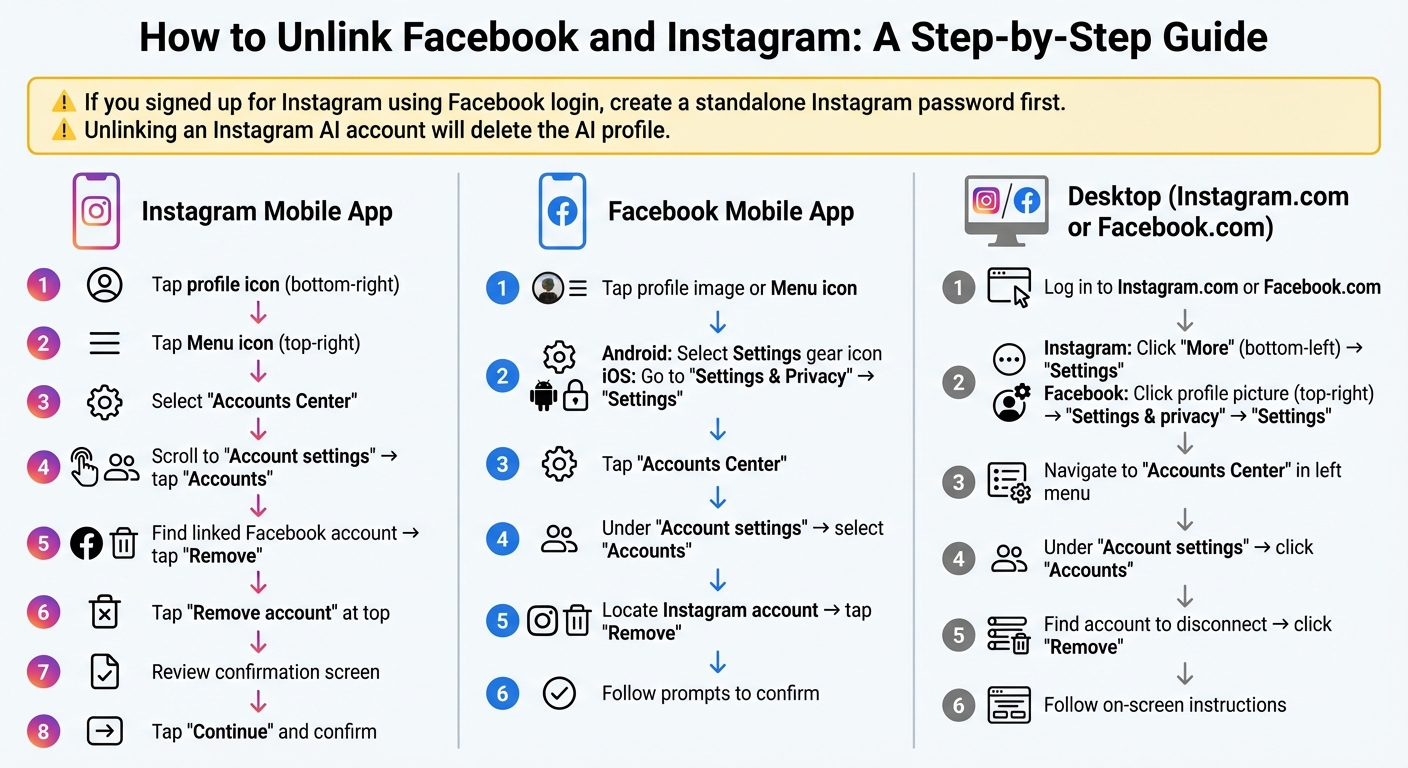
How to Unlink Facebook from Instagram: Step-by-Step Guide
Unlinking your accounts in the Accounts Center is straightforward, whether you're using the Instagram mobile app, Facebook mobile app, or desktop. The process involves heading to the Accounts section and removing the connection.
Note: If you signed up for Instagram using your Facebook login, make sure to create a standalone Instagram password first. Also, unlinking an Instagram AI account will result in the deletion of the AI profile.
Unlinking via Instagram Mobile App
Here’s how to disconnect through the Instagram app:
- Open the Instagram app and tap your profile icon in the bottom-right corner.
- Tap the Menu icon (three horizontal lines) in the upper-right corner.
- Select Accounts Center.
- Scroll to Account settings and tap Accounts.
- Find your linked Facebook account and tap Remove.
- Tap Remove account at the top of the screen.
- A confirmation screen will explain that syncing, cross-posting, and shared logins will stop. Review this information.
- Tap Continue and confirm the removal if prompted.
Unlinking via Facebook Mobile App
If you prefer using the Facebook app, follow these steps:
- Open the Facebook app and tap your profile image or the Menu icon.
- On Android, select the Settings gear icon. On iOS, go to Settings & Privacy, then choose Settings.
- Tap Accounts Center.
- Under Account settings, select Accounts.
- Locate your Instagram account and tap Remove.
- Follow the prompts to confirm. You'll see warnings about syncing and login changes before finalizing the removal.
Unlinking on Desktop
To unlink accounts on desktop, use either Instagram or Facebook:
- Log in to Instagram.com or Facebook.com:
- On Instagram: Click More (three horizontal lines) in the bottom-left corner, then go to Settings.
- On Facebook: Click your profile picture in the top-right corner, then select Settings & privacy and go to Settings.
- From either platform, navigate to the Accounts Center in the left-hand menu.
- Under Account settings, click Accounts.
- Find the account you want to disconnect and click Remove next to it.
- Follow the on-screen instructions to complete the process. The steps closely mirror those on mobile.
Next, learn how to handle potential issues that might come up after unlinking your accounts.
Fixing Common Problems
Even when you follow the unlinking process correctly, a few hiccups can still pop up. Here's how to tackle some of the most common issues:
One frequent problem is the shared login issue, which occurs when your Facebook and Instagram accounts share the same password. If this happens, you'll need to change the password for one of the accounts before the system lets you disconnect them.
If your Instagram account was originally created through Facebook, you'll need to set up a standalone Instagram password. To do this, head to the Logging in with accounts section in the Accounts Center and follow the steps to create a unique password specifically for Instagram.
Sometimes, the Accounts Center won't load or might display errors. To fix this, make sure both apps are updated to their latest versions. If the problem persists, try clearing the app cache in your phone’s settings or switch to a desktop browser to complete the process. Outdated software can often cause glitches that interfere with the Accounts Center's functionality.
For those using business accounts, additional restrictions might complicate the unlinking process. If you can't disconnect, consider switching your Instagram account from a professional account to a personal one in the settings, then try unlinking again.
Lastly, if the accounts remain connected, check the "Logging in with accounts" section in the Accounts Center. As of early 2026, accounts linked in the same Accounts Center log into each other automatically. To fully separate them, manually disable the auto-login feature between the accounts.
Managing Your Accounts After Unlinking
Growing Instagram and Facebook Separately
Once you've unlinked your Instagram and Facebook accounts, it's time to treat them as unique platforms with their own strengths. Focus on creating content that fits each platform's style. On Instagram, lean into its visual appeal with eye-catching photos and videos, while Facebook allows for more detailed updates and discussions. Track engagement, reach, and growth metrics for both platforms individually to refine your strategies and understand what resonates with each audience.
For added security, make sure to use different email addresses and strong, unique passwords for each account. If the accounts previously shared login credentials, this step is crucial to prevent a single security issue from affecting both platforms.
Lastly, take a closer look at your privacy settings to ensure your accounts are secure and functioning independently.
Adjusting Privacy and Security Settings
Revisit the privacy settings on both Instagram and Facebook to maintain control over your information. Start by heading to the Accounts Center and disabling Instagram links and follower counts on Facebook. This keeps your Instagram activity hidden from your Facebook friends.
To further separate the two platforms, turn off "Sharing across profiles" under the "Connected experiences" tab. On Facebook, navigate to "Settings & Privacy" > "Permissions" > "Apps and Websites" to ensure Instagram is no longer listed as an authorized app. These steps ensure your accounts operate independently, giving you more tailored recommendations and ad personalization for each platform.
Conclusion
Separating your Facebook and Instagram accounts gives you more control over your privacy, content, and security. It stops automatic cross-posting and minimizes the chances that a security issue on one platform could affect the other.
The process is straightforward: head to the Accounts Center in your settings and remove the linked account. Whether you're using the mobile app or desktop, the steps are quick and consistent. This simple change allows you to fine-tune how you manage and share content on each platform.
Once unlinked, you can manage Facebook and Instagram independently. Focus on Instagram's visual appeal while crafting Facebook posts that encourage conversation. Analyze metrics for each platform separately to see what resonates with their unique audiences. By tailoring your strategies for each platform, you’ll not only protect your privacy but also make the most of what each has to offer.
FAQs
Will my Instagram profile change if I unlink it from Facebook?
Unlinking your Instagram account from Facebook doesn’t affect or delete your Instagram profile. However, you’ll no longer have access to features like cross-posting content or other shared tools between the platforms. Once disconnected, your Instagram account will operate on its own.
What should I do if the Accounts Center won’t load?
If the Accounts Center isn’t loading, it might be due to a temporary glitch or connectivity issue. Here are a few steps to help you troubleshoot:
- Restart the app: Fully close and reopen Instagram or Facebook to refresh the connection.
- Check your internet connection: Make sure your Wi-Fi or mobile data is stable and working properly.
- Update the app: Verify that you’re running the latest version of Instagram or Facebook, as updates often fix bugs.
Still having trouble? Head over to the official Meta or Instagram support pages. They often have detailed troubleshooting tips tailored to specific issues with the Accounts Center.
What happens to my privacy when I unlink Facebook from Instagram?
Unlinking Facebook and Instagram puts an end to the automatic sharing of posts, stories, and other activities between the two platforms. Once disconnected, the Accounts Center stops syncing data, which limits Meta’s ability to combine your activity for ad targeting or analytics. Essentially, this separation creates a more distinct boundary between your accounts and reduces cross-platform tracking.
That said, unlinking doesn’t delete your accounts or erase the data already collected while they were connected. Both platforms will continue to store any content or activity from the time they were linked. For an extra layer of security, it’s a good idea to update your passwords, especially if you’ve been using the same one for both accounts. While unlinking helps protect your privacy by keeping your digital footprints separate, Facebook and Instagram’s individual privacy policies still apply.


