
When Instagram Stories fail to upload, it’s often due to common issues like weak internet, outdated app versions, corrupted cache files, or temporary server problems. Here’s how to fix it:
- Check your internet connection: Test Wi-Fi and mobile data, restart your router, or toggle Airplane Mode.
- Force close and restart Instagram: Shut down the app completely and reopen it.
- Cancel stuck uploads: Discard any frozen Stories and try reposting.
- Log out and back in: Refresh your account connection by logging out and back into Instagram.
- Clear cache or reinstall the app: Remove corrupted data to fix glitches.
- Update Instagram and your device: Ensure both are running the latest versions.
- Adjust data settings and restart: Turn off Data Saver mode, check permissions, and restart your phone.
If the issue persists, check for outages on Downdetector or try posting from another device. These steps should help you get back to sharing your Stories without interruptions.
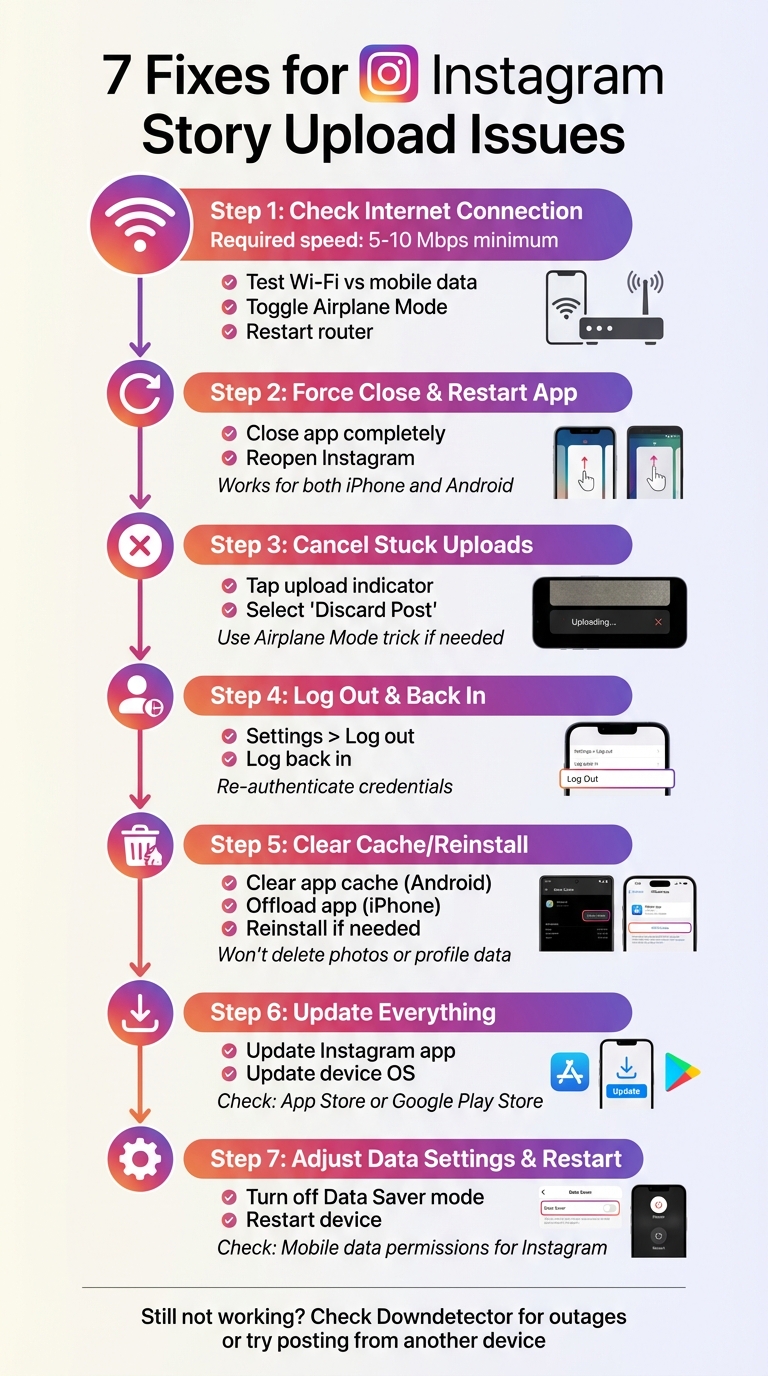
7 Fixes for Instagram Story Upload Issues - Troubleshooting Guide
How To Fix “Stories Not Uploading” in Instagram 2025! Tutorial
Fix 1: Check Your Internet Connection
A shaky or slow internet connection is often the culprit when Instagram Stories fail to upload. To post stories - especially videos - you’ll need an internet speed of at least 5–10 Mbps. If your speed dips below this range, you might see a "Couldn't upload" error or find the upload bar stuck midway.
Test Your Wi-Fi or Mobile Data
Start by switching between Wi-Fi and mobile data to pinpoint the problematic connection. For instance, if your story won’t upload on Wi-Fi, turn it off in your device settings and try using mobile data instead - or vice versa.
You can also refresh your connection by toggling Airplane Mode on and off. On Android, this is available in quick settings, while iPhone users can find it in the Control Center. This simple trick forces your device to reconnect to the nearest cellular tower, which can fix temporary signal issues.
Next, check if Instagram has permission to use mobile data. On iPhones, head to Settings and ensure Mobile Data is enabled for Instagram. On Android, navigate to App Info > Data usage and confirm that mobile data isn’t restricted. Even if other apps are working fine, Instagram might be blocked from accessing cellular data.
Still stuck? Open Instagram.com in your mobile browser. If the website loads but the app doesn’t, the problem is likely with the app itself rather than your internet connection. Another option is to visit Downdetector to check if Instagram is facing a widespread outage.
If none of these steps resolve the issue, the problem could lie with your home network. Restarting your router or modem might do the trick.
Restart Your Router or Modem
If your Wi-Fi connection is weak, restarting your router or modem can help clear up network congestion and refresh your connection. Unplug your router or modem, wait for about 60 seconds, and then plug it back in. This often resolves minor network glitches.
Additionally, if your router supports both 2.4 GHz and 5 GHz bands, try switching to the other frequency. The 2.4 GHz band offers better range but may experience interference, while the 5 GHz band provides faster speeds over shorter distances. Switching bands can sometimes improve your connection and get your stories uploaded without a hitch.
Fix 2: Force Close and Restart Instagram
Sometimes Instagram can freeze up, preventing Stories from uploading properly. Force closing the app stops all active processes, giving Instagram a fresh start - similar to rebooting your phone. Here’s how you can do it.
How to Force Close Instagram
For iPhone Users
Swipe up from the bottom of the screen and pause in the middle to open the App Switcher. If you’re using an older iPhone with a Home button, double-click the button instead. Locate the Instagram app by swiping left or right, then swipe its card up to close it completely.
For Android Users
You have two ways to force close Instagram. First, tap the Recent Apps button (usually a square or three vertical lines at the bottom of your screen) and swipe the Instagram app off the screen. Alternatively, for a more thorough shutdown, long-press the Instagram icon, select App Info (or the "i" icon), and tap Force Stop. This ensures all background processes tied to Instagram are fully stopped.
Reopen Instagram and Try Posting Again
Once you’ve force closed the app, reopen Instagram by tapping its icon. If your Story upload is still stuck, you might need to delete the draft and try posting again. To reduce the chances of errors, start with a simple photo or video - avoid adding extras like music stickers or GIFs, as these can sometimes cause issues. If the problem doesn’t resolve, restarting your device might help clear any lingering glitches.
Fix 3: Cancel Stuck Uploads and Repost
If the earlier fixes didn’t solve your upload issues, it might be time to tackle any stuck uploads. These often appear as a black box, an unmoving progress bar, or a persistent "Uploading..." message that never completes. In some cases, Instagram may even display a "Couldn't upload" error, effectively freezing your Story queue and blocking new posts until the issue is cleared.
How to Cancel a Stuck Upload
Start by opening Instagram and tapping your Story icon in the top-left corner. If an upload is stuck, you’ll see an upload indicator at the bottom of the screen. Tap it, and if you find a Cancel Upload or Discard Post option, select it to stop the process.
If no such option appears, try the Airplane Mode trick. Here’s how it works: enable Airplane Mode through your device’s quick settings to cut off your internet connection. This forces Instagram to display a "Couldn't upload" error. Once the error pops up, tap the three-dot icon and select Discard to clear the stuck upload. Don’t forget to turn Airplane Mode off afterward to reconnect to the internet.
"To cancel an Instagram Story that won't upload, open the upload interface carefully. Tap the Story's upload indicator and choose 'Cancel Upload' or 'Discard Post' to stop it instantly." - Joy Taylor, Technical Writer
Once the stuck upload is canceled, you can move on to recreate and post your Story.
Recreate and Upload Your Story
If your Story was recorded directly in the app, save it by tapping the save icon before canceling the upload. After discarding the stuck post, force close Instagram and reopen it to reset the app. Make sure your internet connection is stable - test both Wi-Fi and cellular data before trying again.
For uploads with extra features like stickers or text, start by posting the plain photo or video without any additions. Fancy features can increase the file size and may cause upload issues, especially on Android devices. Once the basic upload works, you can add your creative elements. Also, double-check that your media is in a standard format - PNG or JPG for images, MP4 or MOV for videos - as unsupported formats can cause uploads to freeze.
Fix 4: Log Out and Log Back Into Instagram
Sometimes, your Instagram account can lose sync, especially after a password change or when juggling multiple accounts. Logging out and back in helps re-authenticate your credentials and refreshes the connection with Instagram’s servers, which can often resolve those annoying upload issues. Here’s how you can do it step by step.
How to Log Out of Instagram
Start by opening the Instagram app and tapping your profile icon in the bottom right corner. Next, tap the hamburger menu (those three horizontal lines) in the top right corner and select Settings and privacy. Scroll all the way down to the Login section, where you’ll see the option to Log out [Your Username]. If you’re managing multiple accounts, you can choose Log out of all accounts instead. Confirm your action by tapping Log Out.
If you want to remove your saved profile from the login screen, tap the Settings gear icon on the login page and select Remove profile.
Log Back In and Test Posting
Once logged out, head back to the login screen and enter your username and password. If you’ve enabled two-factor authentication (2FA) - which is a great way to keep your account secure - you’ll need to input the code sent to your phone or authentication app. After logging back in, try uploading a simple photo or video Story to see if the issue is resolved.
If your accounts are connected through the Meta Accounts Center, you might be asked to confirm some account settings during the login process. Just follow the on-screen prompts, and once you’re back in, test a quick photo or video Story to ensure everything is working smoothly.
Fix 5: Clear Cache and Reinstall Instagram
Instagram relies on temporary files stored on your device to load content faster. However, these files can sometimes become corrupted, leading to annoying issues like failed Story uploads or those mysterious "black box" stories. Clearing the cache can help by removing corrupted data and giving the app a fresh start, often fixing these glitches.
The good news? Clearing the cache won’t delete your photos or profile data. On Android, you’ll stay logged in, but iPhone users might need to log back in, depending on the method used.
Clear Instagram Cache
For Android users, clearing the cache is straightforward. Simply long-press the Instagram icon, go to App info, then navigate to Storage & cache and tap Clear cache.
"Clearing any app's cache on Android improves its performance and speed, but Instagram's cache of photos and video history adds up quickly." - GroovyPost
If you’re using an iPhone, iOS doesn’t have a direct cache-clearing option like Android. Instead, head to Settings > General > iPhone Storage. Find Instagram in the list, tap Offload App to remove temporary files, and then tap Reinstall App.
If clearing the cache doesn’t solve the problem, the next step is a full uninstall and reinstall.
Uninstall and Reinstall Instagram
Reinstalling Instagram ensures you’re starting fresh with the latest version of the app, free from any corrupted files.
- On Android: Go to Settings > Apps > Instagram and select Uninstall. Then, re-download the app from the Google Play Store and log back in.
- On iPhone: Press and hold the Instagram icon on your Home screen, choose Remove App, and confirm the deletion. Reinstall the app from the App Store.
Once you’ve reinstalled the app, try uploading a Story to see if the issue is resolved.
Fix 6: Update Instagram and Your Device
Sometimes, outdated software can mess with Instagram Stories, causing upload issues or making features unavailable. To avoid these hiccups, Instagram suggests keeping both the app and your device's operating system up to date before diving into more complex troubleshooting.
"If you're not seeing all the Instagram features you think you should have, you might wanna try updating your app before hitting the panic button." - Andy Moser, Culture Fellow, Mashable
The good news? Checking for updates is quick and often fixes the problem.
How to Update the Instagram App
Updating Instagram is simple. Open your app store, search for "Instagram", and check the button next to the app. If it says "Update," tap it to install the latest version. If it says "Open," you're good to go.
- For iPhone users: Open the App Store, tap your profile icon, scroll down to "Available Updates", and hit Update next to Instagram.
- For Android users: Open the Google Play Store, tap your profile icon, choose Manage apps & device, and check under Updates available to update Instagram.
To save yourself from manual checks, enable automatic updates. On iPhone, go to Settings > App Store and switch on App Updates. On Android, head to the Play Store, tap your profile icon, then go to Settings > Network Preferences > Auto-update apps.
Update Your Device's Operating System
Your phone’s operating system plays a big role in how apps function. If it’s outdated, it might not support Instagram’s latest features. For instance, as of early 2026, Apple’s latest mobile OS is iOS 26, nicknamed the "Liquid Glass" update.
"Out-of-date software on your phone may make it incompatible with newer versions of Instagram." - Sandra Stafford, Tech Writer
- On iPhone: Go to Settings > General > Software Update and tap Download and Install if an update is available.
- On Android: Navigate to Settings > System > System Update (the exact steps might differ depending on your device manufacturer).
Once you've updated both the Instagram app and your device's OS, try uploading your Story again - it should work like a charm!
Fix 7: Adjust Data Settings and Restart Your Device
If your Instagram Stories aren’t uploading properly, tweaking your device’s data settings and performing a quick restart might do the trick. Sometimes, your phone's data settings, such as Data Saver mode, can interfere with uploading videos or high-quality images. While this mode helps conserve data, it can also slow down or block uploads altogether.
Turn Off Data Saver Mode
Start by disabling Instagram's Data Saver feature. Here's how:
- Open your Profile and tap the hamburger menu.
- Navigate to Settings and Privacy > Data Usage and Media Quality.
- Toggle off the option labeled "Use less cellular data".
Next, check your phone’s system-wide data settings. For iPhone users, go to Settings, scroll down to Instagram, and make sure the Mobile Data toggle is switched on. If you’re using Android, long-press the Instagram app icon, select App Info, tap Data Usage, and ensure that Disable mobile data is not activated.
Once you've adjusted these settings, the next step is to restart your device.
Restart Your Device
"Always try restarting your phone or tablet first if you're having trouble with Instagram." - Instagram Help Center
A simple restart can clear temporary glitches that may be blocking uploads. To restart, power off your device, wait a few seconds, and turn it back on. This process resets minor system issues and halts any background processes that might be interfering. After restarting, open Instagram and try uploading your Story again - this quick fix often resolves the problem.
Once your Stories are posting again, the next question is who sees them. Outfame's organic Instagram growth service puts your profile in front of people who follow accounts like yours.
Conclusion
To tackle posting issues, try these steps: check your internet connection, force-close the app, cancel any stuck uploads, and log out and back in. Clearing your cache and updating both Instagram and your device can help resolve glitches. Additionally, turn off Data Saver mode and restart your device to prevent background processes from interfering with uploads.
If the problem persists, visit Downdetector to check for outages. You might also try uploading through Instagram.com on a mobile browser or posting from another device to rule out hardware-related issues. As a last resort, report the problem by navigating to Profile > Menu > Help > Report a Problem.
For those looking to go beyond troubleshooting, Outfame's AI tools can transform your Instagram strategy. They fine-tune your content to match Instagram's 2026 algorithm, optimize technical details like 3:4 thumbnails, and provide real-time growth analytics - all starting at $39/month, backed by a growth guarantee.
FAQs
Why is my Instagram Story stuck uploading even with a good internet connection?
If your Instagram Story isn’t uploading even with a strong internet connection, there could be a few things causing the issue. For instance, Instagram’s servers might be experiencing downtime, or the app could have a glitch that needs attention. Another common culprit is using a file that’s either too large or in a format that Instagram doesn’t support.
To resolve this, start by restarting the app and checking if an update is available - updates often fix bugs. Also, double-check that your file aligns with Instagram’s size and format requirements. These quick fixes usually get your Stories up and running again, so you can continue sharing without any hiccups.
How do I make sure my Instagram app is always updated?
To ensure your Instagram app runs smoothly and avoid issues like trouble posting, here’s what you can do:
-
Turn on automatic updates:
- On an iPhone, head to Settings → App Store and enable App Updates.
- On Android, open the Play Store, navigate to Settings → Auto-update apps, and select either Over Wi-Fi only or Over any network.
-
Manually check for updates:
- On an iPhone, open the App Store, tap your profile icon, and scroll to see if Instagram has an update available.
- On Android, go to the Play Store, tap My apps & games, and update Instagram if it appears on the list.
- Reinstall the app if necessary: If you suspect your version is outdated, uninstall Instagram and download it again from the App Store or Play Store. This ensures you’re using the latest version.
Keeping your app updated - whether automatically or through occasional manual checks - helps maintain its performance and avoid unnecessary glitches.
What can I do if reinstalling Instagram doesn’t fix my Story upload issue?
If reinstalling the app doesn’t fix the problem with your Instagram Stories, here are some steps you can take to troubleshoot:
- Restart your device: Turn it off, wait a few seconds, and then switch it back on. This can clear out any temporary glitches.
- Check your internet connection: Switch between Wi-Fi and cellular data or try connecting to a different network to rule out connectivity issues.
- Update Instagram and your device’s operating system: Outdated versions can sometimes cause compatibility problems with newer features.
- Ensure your file format and size are correct: Instagram Stories support PNG/JPG images and MP4/MOV videos. Make sure your files meet these requirements and stay within the size limits.
- Clear the app cache: On Android, clear the cache through your device settings. On iOS, you’ll need to delete and reinstall the app for a similar effect.
If none of these steps work, try logging into your Instagram account on another device to check if the issue is specific to your current one. Additionally, you can use Instagram’s built-in “Report a Problem” feature to reach out to their support team for more help.


